
Product descriptions tell you the switch type and the actuation force. They don’t tell you whether a keyboard will feel comfortable after four hours.
Most people buy a keyboard the same way: based on what they already know. A standard layout, familiar feel, same size as the last one. It works until it doesn’t — until a key stops working, or the replacement feels nothing like the original, and you realise you don’t actually know what made the old one right for you.
Product descriptions do little to help the average desk worker get an understanding of what the experience is likely to be using it.
Keyboard terminology splits into two main categories: style — which refers to how the keys are built and how they feel to type on — and size, which refers to the physical footprint and how many keys are included. Both affect how comfortable a keyboard is over a full working day, and both are worth understanding before you buy.
The good news is that neither is complicated once the language is out of the way.
Computer Keyboard Styles and Sizes: What’s Covered
What “Keyboard Style” Actually Means
Style, in keyboard terms, isn’t about colour or branding. It refers to the mechanism underneath the keys — what happens physically when you press one down. That mechanism determines how a keystroke feels, how much force it takes, how much noise it makes, and ultimately, how long the keyboard lasts.
Most keyboards fall into one of three switch types: membrane, scissor-switch, or mechanical. Each one feels noticeably different to type on, and each suits a different kind of use.
Keyboard Styles by Switch Type
Switch type is the most important variable in how a keyboard feels. It’s also the one most product descriptions mention without explaining. Here’s what each one means in practice.
Membrane Keyboards
The most common type by far. Membrane keyboards use a flexible pressure layer that runs beneath all the keys. When you press down, that layer registers the keystroke.
They’re quiet, affordable, and widely available. Most office keyboards and cheap desktop bundles use membrane switches. The feel is soft and undifferentiated — keys don’t give you much feedback about when a keystroke has registered, which means most people press further down than they need to.
Over a short session that’s not a problem. Over several hours of typing, the extra effort accumulates. Finger fatigue sets in faster than it does on other switch types.
There’s a more significant limitation worth knowing: when something goes wrong with a membrane keyboard, the failure is usually in the membrane layer itself, not in a single key. That layer runs across the whole board. If it fails — or if damage affects one part of it — you can’t replace the affected key in isolation. The whole keyboard is effectively done.
This is the same reason a failed key on a laptop keyboard is so difficult to fix. The built-in keyboard on most laptops uses membrane or scissor-switch technology.
When the letter P, for example, stops working on a laptop with a membrane keyboard, the issue isn’t the keycap — it’s the board beneath it. There’s no shortcut for a missing letter. The laptop becomes unusable for typing until an external keyboard gets connected to it.
On a desktop membrane keyboard, the fix is cheap because the keyboard itself is cheap — but the whole unit still goes.
Scissor-Switch Keyboards
Scissor-switch is a refined version of membrane technology. Two plastic tabs — shaped roughly like scissor blades — sit beneath each key and stabilise it as it moves. The result is a flatter, more controlled keystroke than standard membrane.
This is the switch type used in most laptop keyboards and in slim desktop keyboards designed to sit flush on a desk. It’s quieter than mechanical and has a slightly more defined feel than membrane — you get a small amount of feedback, though not much.
The same limitation applies as with membrane: when something fails, it’s usually a layer or mechanism beneath the key rather than the key itself. Individual keys can’t be replaced in the way mechanical switches can.
Scissor-switch keyboards are a good fit for shared living spaces — a spare room, a kitchen table, anywhere a quieter keyboard makes consideration for others practical. They suit portable and low-profile setups well. For long typing sessions, they’re a step up from standard membrane, though not as comfortable over hours than a mechanical keyboard.
Mechanical Keyboards
Mechanical keyboards use an individual physical switch under each key. Press a key and the switch underneath registers it — usually before the key reaches the bottom of its travel. That means you don’t need to press all the way down for the keystroke to count.
Over a long typing session, that reduced travel is what keeps fingers from tiring. Lighter keystrokes reduce cumulative impact on fingers and joints. Many people who switch to mechanical keyboards find they type with noticeably less effort after a short adjustment period.
Mechanical switches come in three main types, which affects feel and noise:
- Linear — smooth keystroke with no bump or click. Quieter than other mechanical types. Good for people who want the typing feel without the noise.
- Tactile — a small bump in the keystroke that you can feel in your fingers, giving instant feedback that the key has registered, without an audible click. A popular choice for office typing — feedback without the noise.
- Clicky — tactile bump plus an audible click. Satisfying for some, disruptive in shared spaces. Worth thinking about carefully if you’re on calls or working alongside anyone else.
Replaceability: what mechanical keyboards offer that others don’t
Because each key has its own independent switch, a failure affects only that key. The keycap — the plastic top you press — can be pulled off and replaced on any mechanical keyboard. If a switch underneath fails on a hot-swap board (one designed for it), the switch itself can be swapped out without soldering or specialist tools.
For most home office users, a worn or damaged key is a minor fix — not a reason to replace the whole board.
Compare that with a laptop keyboard where a single faulty key — even something as fundamental as a number or a pound sign — can leave you working around it indefinitely, using alt codes or avoiding that character entirely.
Mechanical keyboards tend to cost more upfront. Over time, for anyone who types heavily, they tend to work out better value.
A Note on RGB and Backlit Keyboards
Backlighting — including RGB lighting — is a feature, not a switch type. It works across membrane, scissor-switch, and mechanical keyboards.
For remote workers, the practical case for backlighting is straightforward: key visibility in low-light conditions. If the room is dimly lit and you still need to glance at the keys, lit keys reduce errors and eye strain.
RGB — the multi-colour variety — is associated with gaming peripherals, but the underlying feature is just lighting. Plenty of people use backlit keyboards for entirely practical reasons that have nothing to do with gaming.
That said: if you regularly need the backlight to find keys, the room lighting is worth addressing too. A well-lit workspace reduces eye strain and contributes to an ergonomically correct desk setup overall.
Keyboard Sizes Explained
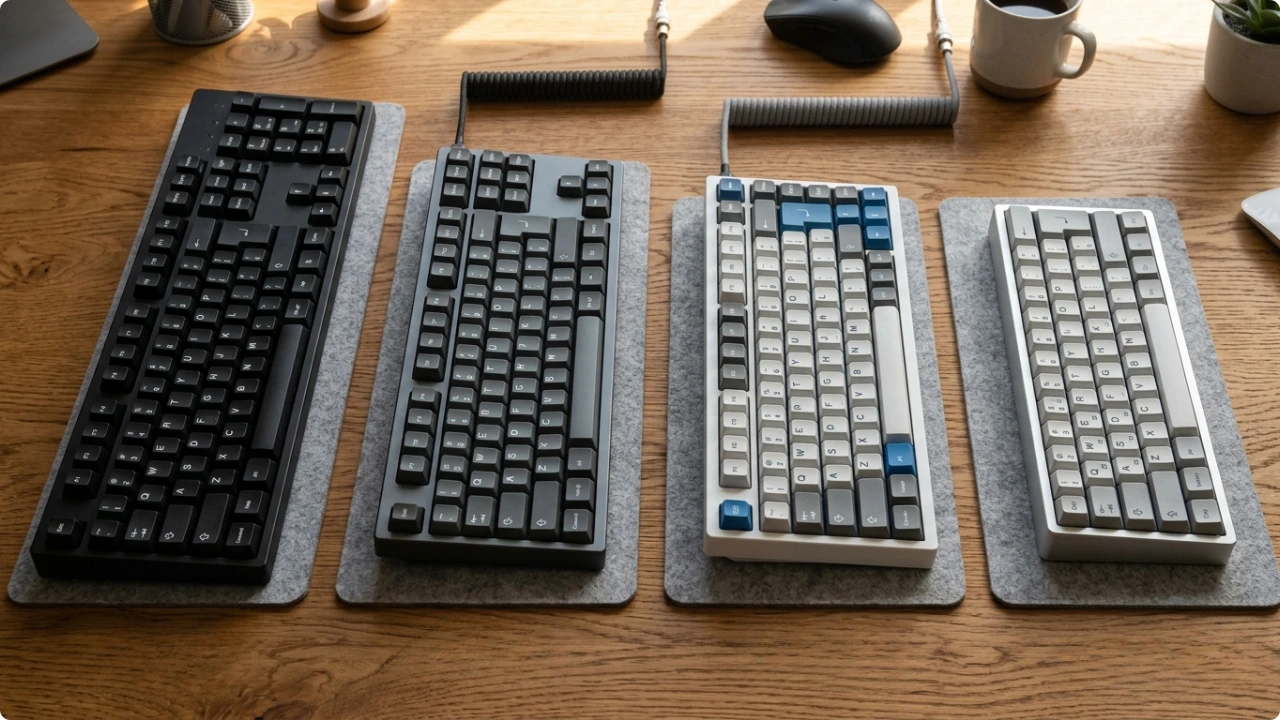
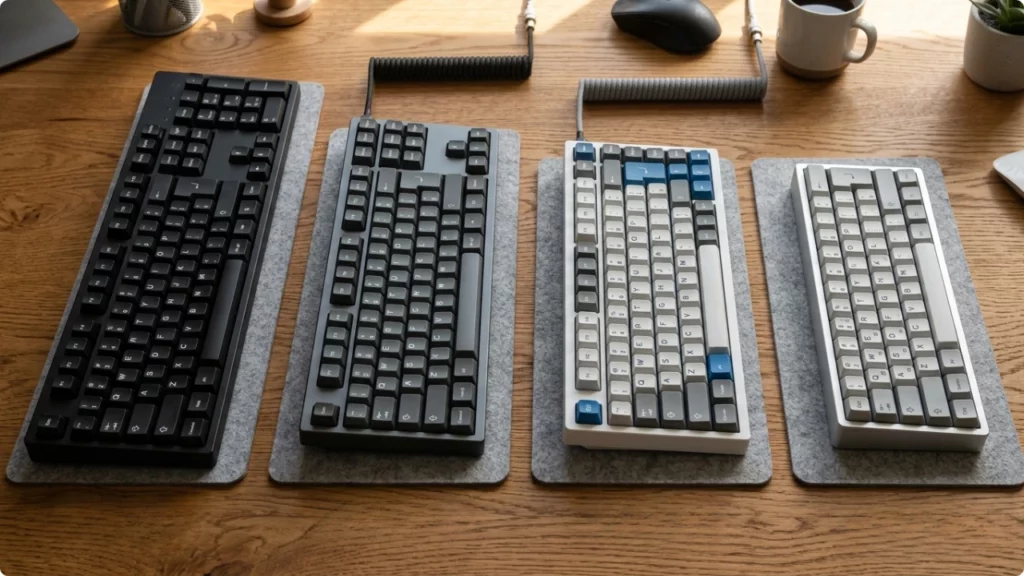
Keyboard size is expressed as a percentage of a standard full-size keyboard, which measures around 44–45 cm wide. Each step down in size removes a section of keys, with the least-used keys going first.
Size affects more than desk space though. A smaller keyboard brings the mouse closer to the keyboard, which reduces how far the right arm has to reach on every mouse movement.
For people spending most of their day with one hand on the keyboard and one on the mouse, that difference adds up.
100% — Full-Size
The standard keyboard most people have used. All keys present: numpad on the right, function row across the top, navigation cluster (Home, End, Page Up, Page Down), and arrow keys.
A standard full-size keyboard in the UK uses the ISO layout — 105 keys, including the large L-shaped Enter key and a dedicated key for # and ~. The US equivalent (ANSI) has 104 keys. Both are considered 100% keyboards, measuring around 44–45 cm wide ; the one-key difference is a layout standard, not a size category.
These are best for data entry and anyone who uses the numpad regularly. The trade-off is desk space. On a standard office desk that’s rarely an issue, but on the smaller surfaces common in home setups, a full-size keyboard takes up a meaningful share of the available space — and the numpad pushes the mouse further right than it needs to be.
80% — Tenkeyless (TKL)
TKL stands for tenkeyless — the numpad is removed, and everything else stays. Function row, navigation cluster, arrow keys: all present. The keyboard is around 20% narrower than a full-size, which brings the mouse considerably closer to where the right hand sits after typing.
For most typists who don’t use the numpad regularly, TKL is the simplest and most practical step toward a more comfortable desk layout. No adjustment to typing habits required, and no shortcuts to learn — making it a good starting point if a small computer keyboard for a cramped desk is what you’re after.
75%
A step smaller than TKL. The numpad is gone and the function row and navigation cluster are compressed into a more compact arrangement — the keys are still there, but packed in tighter. Some navigation keys are accessed via key combinations rather than dedicated keys.
The 75% layout suits home office setups well: it keeps most of the keys that desk workers use regularly while freeing up a meaningful amount of surface space. The key spacing is identical to a full-size keyboard — letters, numbers, and modifiers are all in the same positions.
What shifts is the navigation cluster: Home, End, Page Up, and Page Down are compressed into a column alongside the main key area rather than sitting in their own island to the right. For most typists that’s a non-issue.
If you regularly jump between the start and end of documents or lines, expect a few mis-hits while muscle memory catches up — usually a matter of days.
65%
The function row is removed at 65%. Arrow keys stay, and a small number of navigation keys are usually kept. The one key most remote workers notice is gone is Print Screen — useful if your day involves grabbing screenshots to drop into Teams, Slack, or a shared document.
On a 65% keyboard that’s typically a Fn key combination rather than a dedicated button. For anyone who screenshots occasionally it’s a minor adjustment. For anyone doing it constantly as part of their workflow, it’s worth factoring in before committing to this size.
Where it’s going to be more noticeable is for developers who use F keys regularly in their code editor — for running, debugging, or stepping through code — may find the trade-off more of a hindrance.
60%
The most minimal mainstream size. No function row, no arrow keys, no navigation cluster. The layout is letters, numbers, and modifiers only. Everything else is accessed through the Fn layer.
A 60% keyboard suits touch typists who know their shortcuts and want the smallest possible footprint on the desk. The adjustment period is steeper than any of the sizes above, particularly if you use arrow keys regularly — worth weighing up if you’re deciding between a 60% or 75% keyboard before you buy.
Which Style and Size Suits a Home Office Setup?
The right keyboard depends on which problem you’re trying to solve.
- If you type for long stretches and your fingers or hands ache by the end of the day, switch type is the first thing to look at. A mechanical keyboard with tactile switches reduces the effort of each keystroke and is one of the more effective ways to address wrist pain from typing too much.
- If your shoulder or upper arm tires from mousing, the keyboard size is probably the issue. A full-size keyboard pushes the mouse further right than it needs to be. Moving to TKL or 75% closes that distance noticeably — and is worth considering if you’re already dealing with shoulder pain from working on a computer.
- If wrist or forearm discomfort is the main concern, size and switch type are secondary. The shape of the keyboard matters more than either — which is where the different types of ergonomic keyboards become relevant.
- If the keyboard needs to work across more than one device, or move between desk and bag, connection type becomes relevant alongside size. The wireless vs Bluetooth keyboard distinction is worth understanding before you buy.
Style and size are largely determined by how long you spend typing each day. For remote workers doing heavy document work, the best ergonomic keyboards tend to provide better comfort. The best compact keyboards are often wireless — better suited for portability and hot-desking than a permanent desk, unless space is the real constraint.