
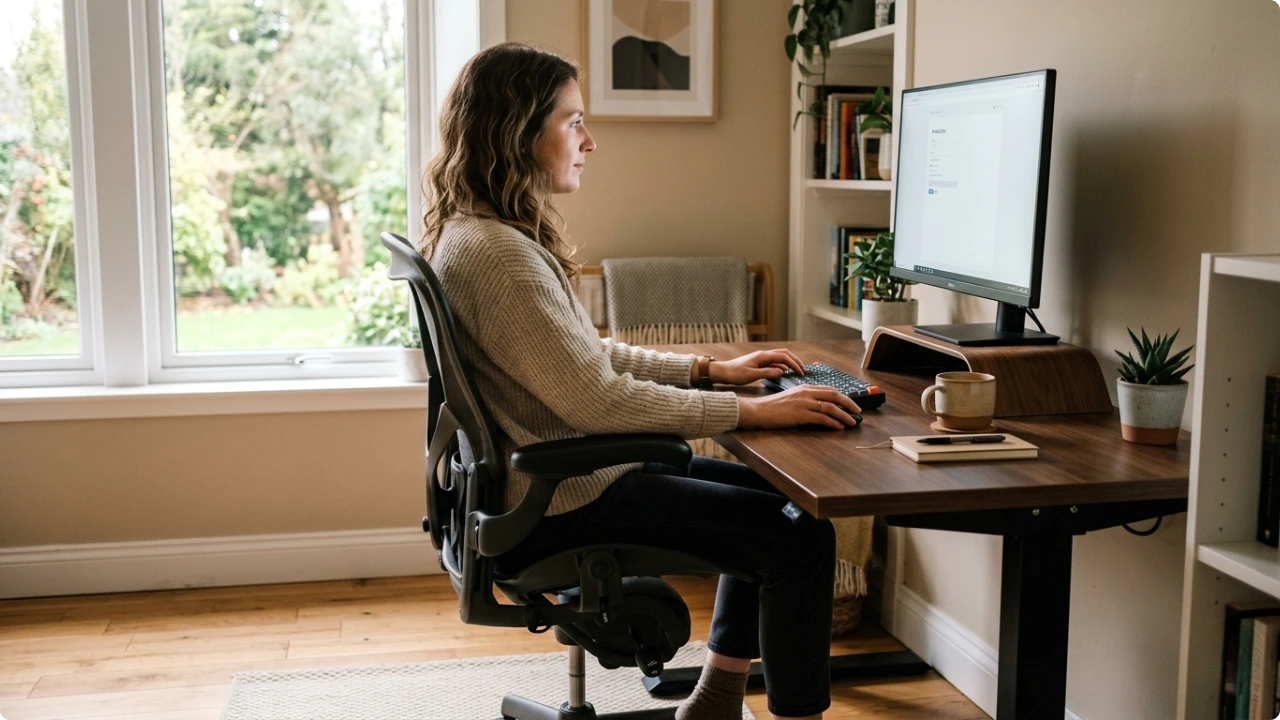
Most desk setups are almost right. One thing is out of place — the chair too low, the screen too far, the keyboard too wide — and everything else is working harder than it should to compensate.
An ergonomically correct desk setup isn’t about buying the right equipment. It’s about getting the relationships between things right — between your chair and your desk, your screen and your eyes, your keyboard and your shoulders.
Most of what makes a desk setup comfortable costs nothing to change.
How to Achieve an Ergonomically Correct Desk Setup
1. Chair Setup
The chair is the foundation of everything else. Get this wrong and no amount of adjusting the screen or keyboard position will fully compensate.
Seat height is the first thing to set. Your feet should rest flat on the floor with your knees at roughly 90 degrees. If the chair goes high enough to get your arms level with the desk but your feet are dangling, a footrest under the desk solves that without compromising the arm position.
Sit back fully into the chair rather than perching at the front. Your lower back should be supported by the backrest or a lumbar cushion — not hovering an inch away from it. The upper back stays in contact with the chair throughout the working day, not just when you remember to sit up.
Shoulders should be relaxed, not lifted or pulled forward. If they’re creeping upward, the chair arms may be set too high, or the desk may be too tall relative to your seated position.
2. Desk Height
Once the chair is set correctly, desk height is a relationship check rather than an independent adjustment.
With your arms hanging relaxed at your sides and your elbows bent to roughly 90 degrees, your forearms should arrive at the desk surface naturally — not reaching upward to meet it, and not dropping down to it. That’s the target height.
If your desk isn’t adjustable and the height is slightly off, the chair is usually the easier thing to change. Going up in chair height — or adding a firm seat cushion to raise it — works provided the footrest option is also in play. Going down to meet a low desk is trickier and often means accepting compromised posture in the upper arms and shoulders.
Clear knee space underneath matters too. Restricted leg position leads to shifting and fidgeting, which feeds back into posture and lower back comfort.
3. Monitor Position
Monitor position is where most desk setups come closest to getting it right — and still fall short in one or two ways.
Height is the most important variable. When thinking about the proper position of a computer screen, the top edge of the screen should sit at or just below eye level, with your gaze falling naturally toward the centre of the display when you’re sitting in a relaxed working position. If you’re looking up at the screen, it’s too high. If your chin is dropping to see it clearly, it’s too low.
Distance follows a reliable rule of thumb. Extend one arm toward the screen — your fingertips should nearly reach the display. Closer than that and the eyes work harder to focus. Further away and the natural response is to lean forward, which undoes the posture benefit of having the screen at the right height.
The screen should also be centred on your body — aligned with your nose and sternum — rather than offset to one side. Even a small consistent neck rotation held for hours adds up across a working week.
4. Keyboard and Mouse
Keyboard and mouse position is where the most avoidable strain tends to build up, and where a single equipment choice can make a disproportionate difference.
The keyboard should sit close enough that your elbows stay near your body when your hands are on the keys — not flaring outward to reach it. Forearms should be roughly parallel to the floor, wrists floating just above the keys in a neutral position rather than resting on the desk surface during typing.
Centre the keyboard by aligning the spacebar with your body’s midline rather than the desk itself. A full-size keyboard with a numpad has its physical centre around the letter G — centering by the board pushes the whole typing position to the left and forces the right arm to reach further for the mouse than it should.
That reach is worth paying attention to. On a standard full-size keyboard, the mouse has to sit significantly to the right — further than most people realise until the right shoulder starts tensing up. A compact keyboard removes the numpad and brings the mouse about 20% closer to the body’s centre, which reduces that sustained reach entirely. The best compact keyboards for regular typing are typically 80% (TKL keyboards or 75% keyboards).
The mouse should sit on the same level as the keyboard — not up on a desk surface with the keyboard on a tray below, which puts both arms working at different heights. It also helps to keep the mouse as close to the edge of the keyboard as possible to prevent your arm moving across the desk. That’s what leads to upper arm and shoulder pain when working at the computer.
5. Lighting and Glare
Lighting affects comfort in two ways that operate independently: ambient light in the room, and glare on the screen itself.
Glare is the more immediate problem. A screen positioned directly facing a window or with a light source behind you will reflect into the display, creating visual noise the eyes constantly try to filter out. Positioning the monitor perpendicular to any window rather than facing it removes most reflective glare without needing window coverings or screen filters.
Screen brightness should be matched to the ambient light in the room rather than left at a fixed setting. A screen that looks fine in a bright afternoon office becomes uncomfortably bright in a dim evening one. Eye strain from extended screen use compounds when brightness and ambient light are mismatched.
Overhead lighting directly above the screen creates a similar problem to a window behind you — reflections land on the display from above. A desk lamp positioned to the side, rather than directly overhead, gives usable light without adding to screen glare.
6. Workspace Layout
How things are arranged on the desk affects how much the body has to move — and how much of that movement is comfortable or not.
Items used frequently should be within easy reach without leaning or rotating the torso. A document stand positioned beside the monitor is more comfortable for reference work than a document flat on the desk below it, which pulls the head down and forward on every glance.
Cable management matters more than it looks like it should. Cables draped across the desk surface limit where things can go and encourage the keyboard and mouse to drift into positions that weren’t planned. Keeping cables clear of the working surface makes it easier to keep the keyboard and mouse where they actually belong.
A clear desk surface — even a modestly sized one — tends to be more comfortable to work at than a cluttered one at twice the size. When there’s space to move the keyboard slightly, shift the mouse, or rest both forearms, the body can make small adjustments throughout the day rather than being fixed in one position.
7. Movement and Habits
The most effective movement at a desk is the kind that happens without you thinking about it.
Even a correct seated position asks the same muscles to hold the same load, hour after hour. Your ankles and lower legs do the least, and that’s where a lot of the stiffness in a long session builds. A dynamic footrest with a rocking base keeps a low level of movement going at the ankle and lower leg through the day, easing that stiffness without you having to stop or remember to.
That passive motion does something a well-positioned chair can’t — it keeps you gently active rather than held in place.
The movement you do have to think about still earns its place, though, and it doesn’t take much. A few desk exercises you can do while working — wrist and finger stretches, shoulder rolls, the odd seated leg movement — keep the joints loose and the blood moving without pulling you off the screen.
And when you’d rather not have to remember at all, a bit of desk exercise equipment like an under-desk exerciser keeps your legs going steadily in the background while your hands and attention stay on your work.
The setup can support the habits that do need a prompt, too. A posture reset takes a few seconds: feet flat, back against the chair, shoulders down, wrists neutral. Done now and then across a session, it beats trying to hold perfect posture from start to finish.
And for your eyes, the 20-20-20 rule — every 20 minutes, look at something 20 feet away for 20 seconds — handles the one thing no amount of desk adjustment can fix on its own.