
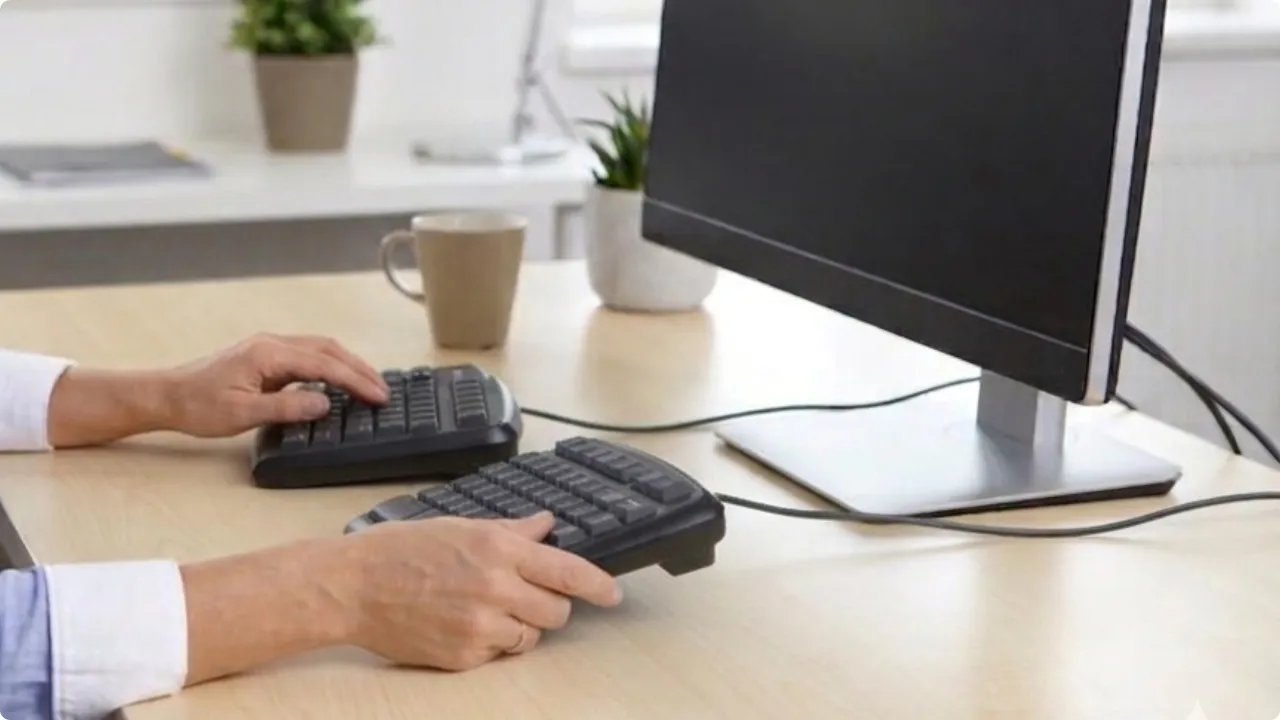
Most ergonomic keyboards are bought for the wrong reason — because they look comfortable, or because the price felt reasonable. Neither tells you whether a keyboard will actually address what’s causing your discomfort. The type does.
Over half a million workers in Great Britain are currently dealing with a work-related musculoskeletal disorder, according to the HSE. The keyboard isn’t always the cause — but for desk workers, it’s one of the more controllable factors.
Choosing the right ergonomic keyboard starts with understanding what’s actually putting strain on the body, and which designs are built to address it.
Different types of ergonomic keyboardshelp with different aspects of your body and posture, contributing to how comfortable you feel at your desk. Even the best ergonomic keyboards can have pitfalls that’s worth knowing about before you order.
Choosing an Ergonomic Keyboard That’s Right for You
The 3 Problems Ergonomic Keyboards Are Designed To Fix
Standard keyboards are laid out flat and in a straight line, which looks neutral but actually causes your hands and arms to hold positions that place sustained stress on soft tissue.
That leads to three main physical effects that can make typing uncomfortable:
Ulnar deviation
This is where your wrists angle outward to reach the keyboard keys. On a full-width standard keyboard, your hands have to splay apart from the natural resting position of your arms, causing a persistent sideways bend at the wrist joint. Over hours of typing, this contributes to wrist soreness and is one of the factors associated with repetitive strain injuries.
Wrist extension
On conventional flat or positively tilted keyboards, many typists adopt a slightly extended wrist posture rather than a fully neutral one, and research shows that reducing keyboard slope can reduce that extension.
Forearm pronation
Resting your hands flat on a keyboard means your forearms are fully rotated palm-down (pronated). This position requires muscular effort to maintain and can contribute to forearm and elbow fatigue. Keyboards designed with tenting — a raised centre ridge — reduce the degree of pronation, which can reduce that sustained effort.
None of this means a standard keyboard is dangerous for occasional use. The problems tend to emerge with sustained, repetitive use — the kind that characterises a full working day, typing at a desk. An ergonomic keyboard doesn’t eliminate these issues automatically, but a well-chosen one can meaningfully reduce the mechanical load on your body.
Worth noting: the keyboard is one part of a larger ergonomic picture. If you’re experiencing discomfort, your monitor height, chair, and desk setup all play a role too.
The Types Of Ergonomic Keyboards — And What Each One Does
The term covers several distinct designs, and each one addresses a different physical problem. The main types of ergonomic keyboards are:
- Curved / wave keyboards — the most common entry point; reduce ulnar deviation slightly with almost no adjustment period
- Split keyboards — divided into two halves (fixed or fully separable) to better align each hand with the forearm
- Tented keyboards — raise the centre ridge to reduce forearm pronation; often combined with a split design
- Compact keyboards — remove the number pad to bring the mouse closer, reducing shoulder and right-arm strain
There’s also a less common option worth knowing about: ortholinear keyboards, where keys are arranged in a straight grid rather than the staggered rows of a standard layout. The idea is that fingers travel in straight lines rather than at angles — appealing in theory, though the adjustment period is steep and the ergonomic evidence is limited.
Which type is right for you depends on where your discomfort is coming from.
Key Factors To Consider Before You Buy
Once you have a sense of the type that might suit you, there are several practical factors that determine whether a specific keyboard will work well in your situation.
What Problem Are You Trying To Solve?
Start here, because the answer shapes every other decision. The main complaints are:
- Wrist pain or stiffness: a split keyboard with some tenting is typically most effective. If the pain is pronounced, an ergonomic keyboard for wrist pain specifically would be the logical choice.
- Shoulder tension: reducing mouse reach with a compact keyboard, or widening hand position with a split design.
- General hand and forearm fatigue after long sessions: a curved or entry-level split keyboard usually helps, often combined with adjusting typing posture and taking regular breaks.
- No specific pain, just prevention: a curved or fixed-split keyboard is a reasonable, low-adjustment-period starting point.
Your Desk Setup
A fully separable split keyboard needs desk space on both sides. If you work at a small desk, a compact ergonomic keyboard — one that’s both smaller and ergonomically designed — may be a better fit than a wide split board.
Consider also whether you use a wrist rest. Some ergonomic keyboards are designed with a built-in palm rest; others are designed to be used without one. A poorly positioned wrist rest can actually create more pressure on the wrist than no rest at all.
How Much Mouse Work Do You Do?
If you spend significant time moving between keyboard and mouse, the width of your keyboard determines how far your shoulder extends to reach the mouse. A full-width keyboard with a numpad pushes the mouse well to the right; a tenkeyless or compact design brings it meaningfully closer. This is a practical ergonomic consideration that often gets overlooked.
Are You A Touch Typist?
This is important for split and ortholinear keyboards. If you rely on looking at keys or use an unconventional finger placement, a split keyboard can be genuinely frustrating at first.Curved keyboards require no adjustment.
If you want the benefits of a split design but are nervous about the learning curve, a fixed-split keyboard (where the two halves are joined but angled) is a useful intermediate step.
Connectivity
The most common connection types are wired or wireless keyboards. Wired keyboards are almost always full size, or 75% of more. They have the most stable connections, but are better suited for a fixed workstation setup. Wireless compact keyboards are better suited to connecting to multiple devices, such as laptops, smart phones, and tablets, using Bluetooth connectivity.
For a home office, wired keyboards are reliable and eliminate battery concerns. Wireless keyboards offer cable-free flexibility and cleaner desk organisation, which can be helpful when you’re already managing monitor, laptop, and peripheral cables.
Budget
Ergonomic keyboards span a wide price range. Broadly:
- Entry level (under ~£40): curved/wave keyboards, basic fixed-split designs. Good for mild discomfort or prevention. Build quality is functional but not premium.
- Mid range (~£40–£100): better-built split keyboards with some tenting options, improved key switches, more reliable wireless. This is where most people find a good balance of benefit and cost.
- Premium (£100+): fully adjustable split and tented designs, mechanical switches, high build quality. Justified if you have significant discomfort or spend most of your working day typing.
Learning Curve
Changing your keyboard is likely to slow down your typing speed, temporarily, until you’ve adjusted to the new layout. A curved keyboard takes minutes to adjust to. A fixed-split might take a few days. A fully separable split can take one to three weeks before your typing speed returns to normal. This isn’t a reason to avoid them — the adjustment is temporary — but it’s worth knowing before you buy, especially if you can’t afford productivity disruption in the short term.
Should you feel that a full-split keyboard is your best option, consider splitting your time between your old and new keyboard. Some typing websites that can be good for improving speed and accuracy with a new keyboard include: keybr.com, monkeytype.com, 10fastfingers.com, typeracer.com or problemwords.com.
What To Look For In The Keyboard Itself
Once you’ve settled on a type, here are the build and feature characteristics worth evaluating:
Key Switches
- Mechanical switches provide tactile feedback that helps you type with less force — you don’t need to bottom out the key to register a press, which reduces finger and wrist impact.
- Membrane keyboards are quieter and cheaper but offer less feedback. Low-profile mechanical switches are a good middle ground: mechanical feel with a flatter, more compact keyboard.
- If you share a workspace or take calls frequently, switch noise is a practical consideration. Linear mechanical switches are quieter than clicky ones; low-profile and membrane keyboards are quieter still.
Wrist / Palm Rest
A built-in wrist rest is convenient but fixed. A separate wrist rest gives you more flexibility to position it correctly — the rest should support the palm, not the wrist itself, and only when you’re pausing between bursts of typing rather than during active typing.
If a keyboard comes with a built-in rest that forces your wrist into an awkward angle, it can be worse than no rest at all.
It’s also worth considering that an integrated wrist rest is often the first to show signs of wear. These are not replaceable and could see you retiring a good keyboard because of aesthetics.
Adjustability
For tented keyboards, adjustable tenting angles let you find what works for your anatomy. Fixed-angle keyboards may suit most people, but if you have specific ergonomic needs, adjustability may be worth paying more for.
Keyboard and Mouse Combos
Many of the manufacturers in both the ergonomic keyboards and ergonomic mouse space aren’t necessarily the best for both. Some are good enough. Often though, you’ll find that one brand is better than the other for specific products. Not all keyboard specialists excel at mouse design, and vice versa.
The vast majority of time, an ergonomic keyboard and mouse combo are from long-established brands that have years of customer feedback to improve their designs.
A Quick Decision Guide
If you want a fast steer based on your situation:
- New to ergonomic keyboards, no specific pain: start with a curved/wave keyboard or a fixed-split design.
- Wrist pain is your main concern: look at split keyboards with some tenting and specifically designed keyboards to reduce wrist pain.
- Shoulder tension or wide arm reach to your mouse: a compact keyboard (tenkeyless or smaller) may help as much as an ergonomic design — or combine both.
- Small desk: compact ergonomic keyboard rather than a wide split board.
- Heavy typist willing to invest: a premium separable split keyboard with adjustable tenting offers the most comprehensive ergonomic benefit.
- Not a touch typist: stick to curved or fixed-split keyboards to avoid a time-consuming learning curve.
The Keyboard Is One Part Of The Picture
An ergonomic keyboard can genuinely make a difference — but it’s worth being clear-eyed about what it can and can’t fix on its own.
Wrist and shoulder discomfort during desk work usually has more than one cause. If your monitor is too low, you’ll hunch toward it and put strain on your neck and upper back regardless of your keyboard. If your chair height isn’t right, it affects your whole arm position. If your feet aren’t properly supported, it affects your sitting posture further up the chain.
Some of the other factors worth addressing alongside a keyboard upgrade:
- Monitor height: your screen should be roughly at eye level. A monitor stand or monitor arm can make a significant difference to neck and shoulder tension.
- Laptop position: typing directly on a laptop keyboard means your screen is too low and your arms are too close together. A laptop stand can improve posture by raising the screen to a better height, which then makes an external ergonomic keyboard worthwhile.
- Seat position: a seat cushion may help with back pain by correcting the seat height and tilt, which affects how your whole upper body is positioned at the desk.
- Foot support: if your feet don’t rest flat on the floor when you’re seated at the right height, that’s when using a footrest fills that gap and stabilises your whole posture.
This isn’t to say you need to overhaul your entire setup at once. But if you buy an ergonomic keyboard and find your discomfort doesn’t improve, it’s worth considering whether something else in the setup is the bigger contributor.
How To Set It Up Correctly
Desk comfort goes beyond the accessories themselves — the correct setup for ergonomic keyboards and how everything works together cohesively makes as much difference as the hardware.