
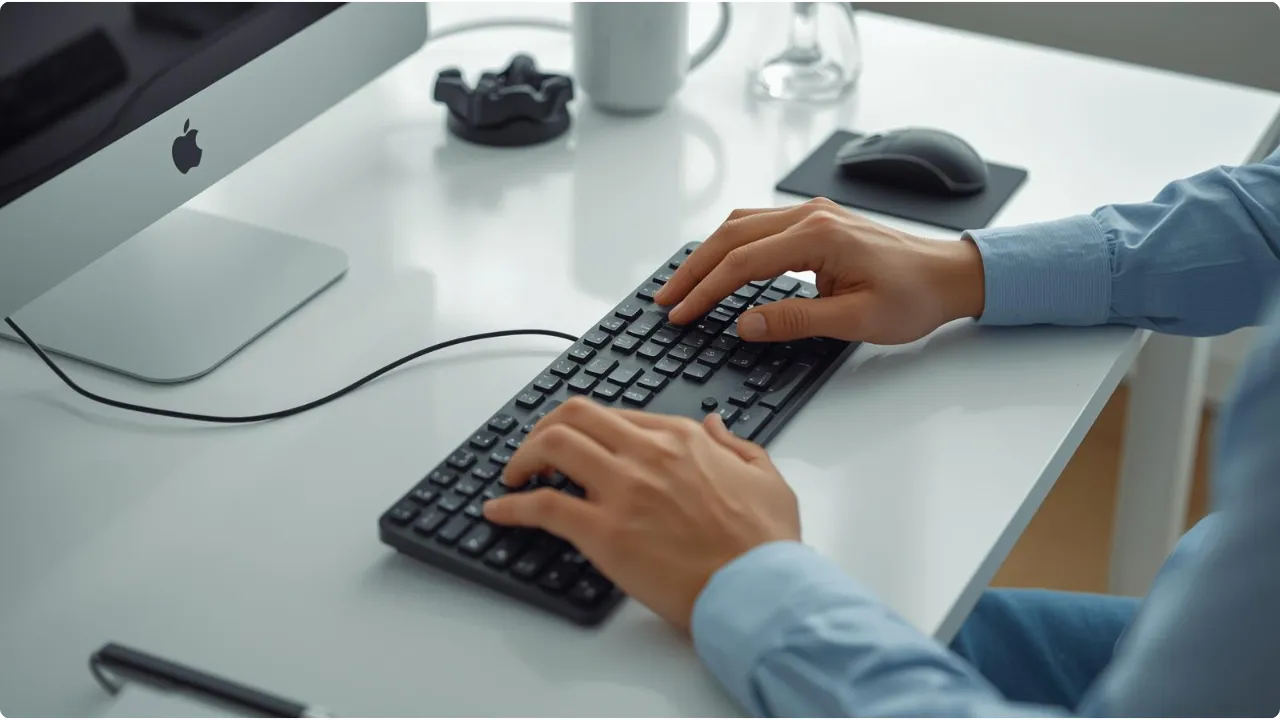
Most typing discomfort starts long before your fingers hit the keys. Posture, positioning, and desk setup do more ergonomic work than any keyboard can.
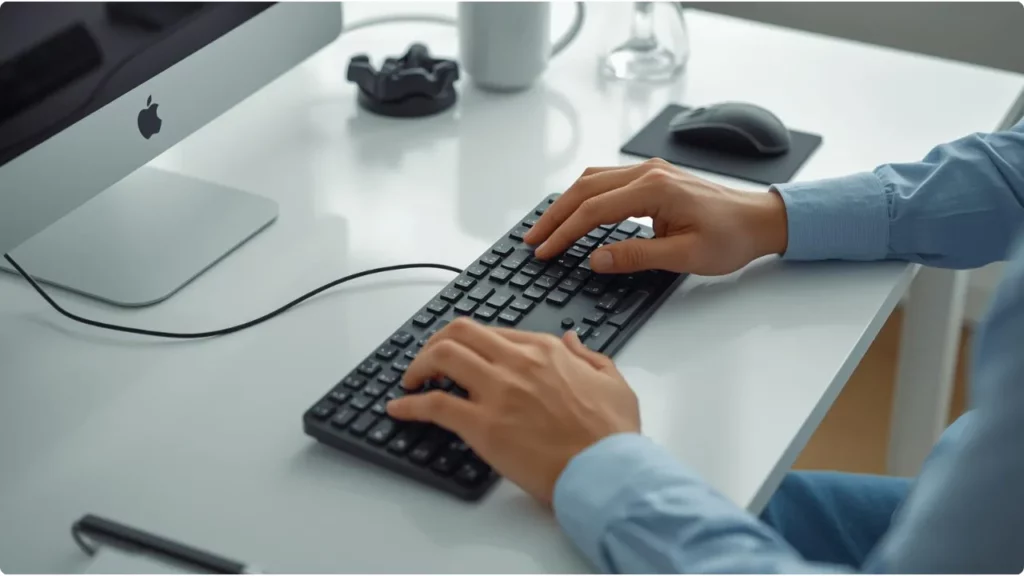
When most of your working day is spent typing, ergonomics matters more than most people realise. An ergonomic keyboard feels like the obvious fix for the rawness in your fingers and knuckles, the wrist pain, the forearm fatigue, the shoulder tension, the nagging back. Confusingly, the keyboard is often the last thing that needs changing.
The tricky thing about typing-related discomfort is that the symptoms rarely point clearly to their cause.
Fingertip pain might trace back to wrist position. Shoulder tension might come from where your mouse sits, not your keyboard at all. Before you spend money on new hardware, it’s worth ruling out a few things first.
Is Switching to an Ergonomic Keyboard Worth It?
Before You Blame the Keyboard
The most common causes of typing discomfort have nothing to do with the keyboard itself — and fixing them costs nothing.
Consider these issues:
Forearm angle. Your forearms should be roughly level with the keyboard, or angled very slightly downward toward it. If your desk is too high relative to your chair, you end up reaching upward with your hands. A position that loads the forearm and wrist with every keystroke.
Floating wrists. This one surprises a lot of people. When you’re actively typing, your wrists shouldn’t be resting on the desk or a wrist pad — they should be floating just above the keyboard surface, with your fingers dropping down to the keys rather than stretching out from a fixed position.
Think of how a pianist moves: hands travelling freely, wrists up, no dead weight pressing down. Resting your wrists while typing creates pressure on tendons and joints that compounds quickly over a full working day.
Keyboard centring. Most people centre their keyboard by the physical board — but a full-size keyboard’s centre sits somewhere around the letter G. If your right hand is doing more work than your left, or your right forearm and shoulder ache more, try centring the keyboard so the spacebar aligns with your body’s midline instead.
Typing force. If your fingertips feel raw or your knuckle joints ache, the culprit is often impact — pressing keys hard enough that they bottom out with force rather than a light touch. This is particularly common when pushing for speed. If you’re using platforms like Monkeytype to build your typing speed, the drive to hit higher WPM scores can make you type harder without realising it.
Chair and desk height. If your feet aren’t flat on the floor, the knock-on effects travel up through your whole posture. A simple fix worth considering is using an adjustable footrest first, before adding new hardware to your desk.
Correct any of these first. If the discomfort clears up, you’ve saved yourself the cost and learning curve of a new keyboard entirely.
Symptoms That Do Point to a Keyboard Problem
If you’ve worked through the setup fundamentals and things still aren’t right, the keyboard itself is worth looking at more closely.
These are the issues switching to an ergonomic keyword may be the right call:
Right forearm and elbow pain is one of the clearest signals — especially if it develops after relatively short sessions. This is often caused by the way a full-size keyboard positions your mouse. A standard keyboard pushes the mouse out to the right, forcing your right arm to extend and hold a sustained reach every time your right hand reaches for the mouse. That sustained extension adds up fast across a working day.
Shoulder tension follows a similar pattern — if your right shoulder carries more fatigue than your left, mouse reach is usually the first thing to investigate.
Wrist and forearm ache during high-volume typing — the kind that builds up over several hours rather than appearing suddenly — can be an early sign that the keyboard geometry itself is working against you. Standard keyboards keep both hands on the same flat plane, which requires a degree of pronation (rotating the forearms inward) that increases strain over time.
Pinky fatigue is worth a special mention for anyone actively learning to touch type properly. If you’ve recently started using all your fingers correctly for the first time — after years of a two or three-finger approach — some discomfort in the outer fingers and forearm is normal.
Those muscles simply haven’t been used that way before. The question to ask is whether it’s fading as you practise, or getting worse. Soreness that improves over days and weeks is conditioning. Soreness that intensifies or spreads is a signal to stop and reassess your setup.
Compact or Ergonomic: Which Type of Keyboard Do You Actually Need?
Once you’ve established the keyboard is part of the problem, the solution doesn’t have to be an expensive split board with a steep learning curve. There are two broad directions, and the right one depends on what your symptoms are telling you.
Compact keyboards as a first step. If mouse reach and shoulder tension are your primary issues, a compact keyboard — TKL (tenkeyless), 75%, or 65% — may be all you need.
Dropping the numpad brings the mouse closer to your body’s centre line, reducing the arm extension that causes right-side forearm and shoulder fatigue. It’s a low-friction change: the layout is familiar, the adjustment period is minimal, and the cost is modest. For many remote workers with mild or early-stage discomfort, this is enough.
Dedicated ergonomic keyboards go further, addressing the pronation and wrist angle problems that compact boards don’t solve. Split keyboards allow each hand to sit at a more natural angle, reducing the inward rotation of the forearms.
Tented designs raise the inner edges of the board to align more closely with a neutral wrist position. Columnar key layouts align keys in straight vertical columns rather than the staggered QWERTY arrangement, reducing lateral finger stretch.
These features matter most for people with higher daily typing volumes, persistent symptoms that setup corrections haven’t resolved, or early indicators of RSI or carpal tunnel that aren’t improving.
A good rule of thumb: if the problem is where your mouse lives, start with one of the top compact keyboards that fit your work setup. If the problem is how your hands sit on the keyboard, look at the best ergonomic keyboards that match how you naturally type.
When a Full Ergonomic Keyboard Is the Right Call
A dedicated ergonomic keyboard makes the most sense when:
- Discomfort persists after you’ve corrected desk height, chair position, wrist technique, and keyboard placement
- You type for extended periods daily — several hours of continuous typing is a different cumulative load than occasional use
- You’re experiencing early RSI symptoms: tingling, numbness, or aching that doesn’t resolve with rest over a weekend
- You’ve already tried a compact board and the improvement has plateaued
It’s also worth considering switch weight if fingertip or joint pain is a cause of concern.
Mechanical keyboards with lighter actuation switches reduce the force required per keystroke, which matters when you’re multiplying that force across thousands of keystrokes a day. Hot-swappable keyboards let you experiment with different switches without replacing the board — worth knowing if you’re unsure where to start.
Making the Switch: What to Expect
An ergonomic keyboard — particularly a split layout — will slow you down before it speeds you up. That’s not a flaw, it’s just muscle memory being rebuilt. Most people find the adjustment takes two to four weeks of regular use before they’re back to their previous typing speed, and a few weeks more before the new layout starts to feel natural.
A few things that help:
- Start part-time. Use the ergonomic board for focused writing sessions and fall back to your regular keyboard for calls and quick tasks. Gradual exposure is less frustrating than going cold turkey.
- Don’t skip technique. An ergonomic keyboard doesn’t fix floating wrist posture automatically — you’ll still need to apply the same principles. The board changes the geometry; you still need to apply the proper technique.
- Expect pinky soreness. If you’re learning to use your pinkies more deliberately on a new layout, some muscular conditioning discomfort is normal and temporary.
Should You Switch? A Simple Decision Framework
Work through this in order:
- Fix your setup first — desk height, chair position, forearm angle, wrist technique, keyboard centering. If discomfort clears up, you’re done.
- If right-side shoulder or forearm tension persists, try a compact keyboard. Moving the mouse closer to centre is often the entire fix.
- If discomfort continues after going compact, or if you have high daily typing volumes and wrist/forearm symptoms, look at dedicated ergonomic keyboards.
- If you have persistent tingling, numbness, or pain that doesn’t respond to any of the above, see a doctor before buying more hardware. These can be signs of conditions that need medical attention, not just a new keyboard.
The right keyboard for your setup depends on where the problem actually lives — and more often than not, the keyboard is the last thing that needs changing, not the first.