
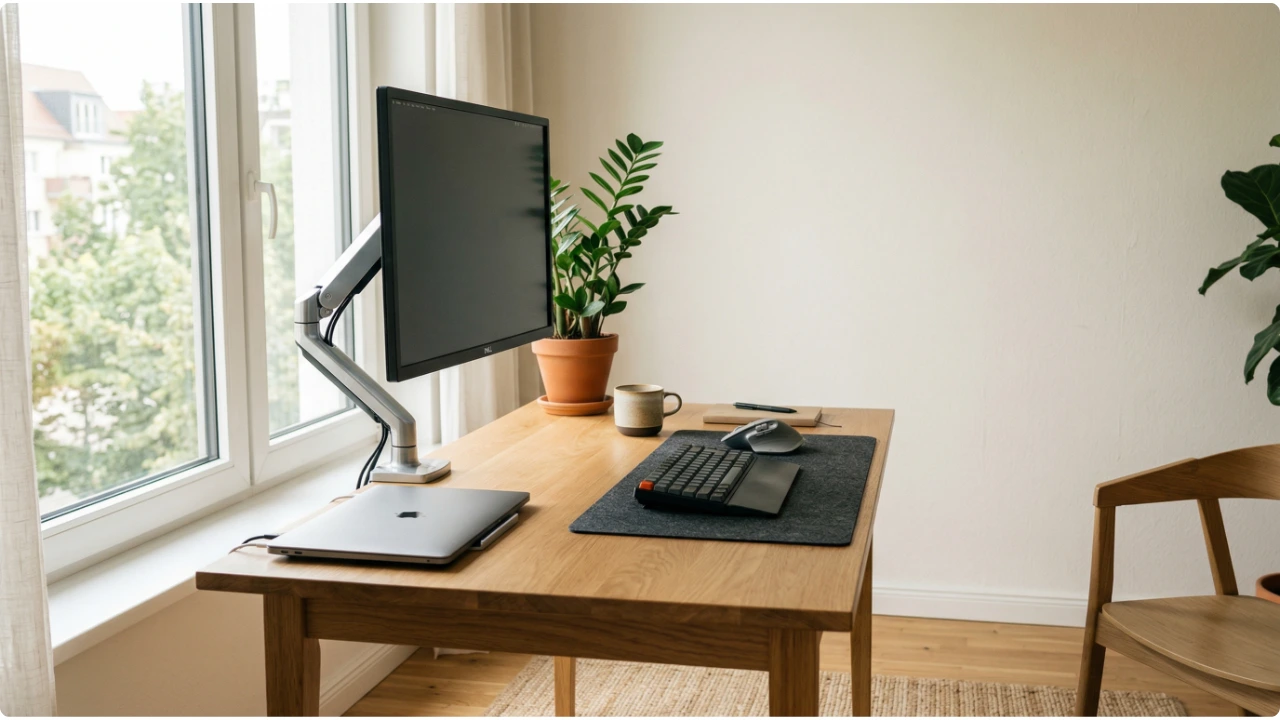
A screen that sits too low has an obvious fix — raise it — and a monitor riser is the usual way to do it. What’s less obvious is that a riser solves the problem completely in some setups and only halfway in others. Which one you end up with depends entirely on the desk, the distance, and how the screen gets used.
Most people searching for a monitor riser do not yet know there are two distinct ways to raise a screen. A stand sits on the desk surface and lifts the monitor from below. An arm clamps to the desk edge and holds the screen off the surface entirely.
The arm frees the desk underneath and allows the monitor to be repositioned at any point. Both solve the low screen problem. Which one solves it better depends entirely on the desk, the setup, and how the workspace gets used day to day.
What a Riser Solves — and Where It Falls Short
What Each Option Actually Does
A monitor stand raises the screen by a fixed or limited height. It sits on the desk, the monitor sits on it, and the setup stays where it is. Installation is straightforward — place it on the desk and the job is done. No tools, no clamping, no compatibility checks.
A monitor arm attaches to the desk by clamping to the edge or passing a bolt through a grommet hole in the surface. The monitor mounts to the arm via VESA fixings on the back of the screen. Once installed, the arm holds the monitor off the desk entirely.
Height, depth, tilt, and angle can all be adjusted freely at any point.
What a Monitor Riser Genuinely Fixes
The core problem a riser solves is straightforward. A screen sitting flat on a desk forces the head forward and downward for hours at a time, loading the cervical spine in a way that accumulates across a working week. Raising the screen removes that sustained downward angle and allows the neck to hold a more neutral position.
For a single monitor on a desk where the screen distance already feels workable, a stand is often the simplest and most cost-effective solution. There is no installation to manage, no desk compatibility to check, and no hardware to adjust.
Stands work particularly well for setups that do not change frequently — one user, one position, a screen that stays where it is placed. For anyone not yet ready to invest in one of the best adjustable monitor arms, a stand delivers the core ergonomic benefit at a fraction of the cost.
A stand also solves a specific problem in multi-monitor setups where both screens need to sit at the same height. Two matching stands bring both displays to a consistent eye level without the complexity of a dual arm installation — provided the desk is wide enough and both monitors are similar in size and weight.
The Dual Monitor Question
Someone searching for a monitor riser for two screens is often assuming a single platform exists that handles both. Sometimes it does. More often, the right answer depends on what the desk can actually accommodate.
A wide single-platform stand works for two monitors when the desk is wide enough to support the footprint and both screens are similar in size and weight. The constraint is that a fixed platform serves both screens at the same height — which suits most setups but rules out any arrangement where one monitor needs to sit higher or at a different angle.
A dual monitor arm gives independent control over each screen and removes both footprints from the desk surface entirely. The practical constraint is rear clearance — a clamp mount needs several centimetres between the desk edge and the wall. On a desk sitting flush against a wall, that clearance simply is not there.
When Desk Space Is the Real Problem
For desks where width is the real constraint, a single arm with 360-degree rotation offers a different solution. One monitor stays in landscape for primary work. The second rotates to portrait, taking up considerably less horizontal space than two landscape screens side by side.
Portrait orientation suits document work, coding with a reference panel, or any workflow where a tall narrow view is genuinely useful. It solves the space problem without sacrificing a second screen.
Stacking monitors vertically is sometimes considered when desk width is extremely limited. It can work, but only if the upper screen is used passively — reference material, a dashboard being monitored, a document being read rather than edited.
The moment both screens require active switching, the sustained upward neck angle to reach the top screen reintroduces the strain the riser was supposed to remove. If the upper screen is genuinely only glanced at occasionally, the arrangement is manageable. If it becomes a working screen, it is not.
What a Monitor Riser Does Not Fix
The most important limitation of a stand is the distance of the screen for the user. A stand raises the screen but cannot change how far away it sits. If the monitor is already too close, a taller platform may leave the posture problem largely unchanged.
The neck angle improves but the eyes are still working harder than they should at a distance that is too short. The correct viewing distance is approximately an arm’s length — fingertips nearly touching the screen when the arm is extended from a normal seated position.
If the screen is closer than that and the desk does not have the depth to move it back, a stand alone will not solve the problem. A monitor arm holds the screen at a fixed point in space regardless of where the desk sits. That makes it possible to pull the desk forward slightly and gain the viewing distance a stand cannot provide.
A stand also has limited value on a shared desk where different users need different screen heights. A fixed stand puts the screen at one height. If that suits one person and not another, there is no adjustment available without swapping the stand entirely.
An arm allows the height to be changed in seconds, which makes a meaningful difference when the same desk is used by people of different heights throughout the day.
Positioning a stand too high is a common mistake that creates the opposite of the intended benefit. A screen above eye level forces the chin upward and loads the back of the neck in a way that is at least as damaging as looking downward.
The target is the top edge of the screen at or just below eye level — not as high as the stand will go. For anyone wearing progressive lenses, the correct height sits slightly lower than standard guidance suggests, because the reading zone requires a more natural downward gaze to work comfortably.
Working Out What Height You Actually Need
Buying a stand without knowing the target height is one of the more common ways to end up with a product that does not solve the problem. Most stands offer a fixed height or a limited range of positions. Finding out after purchase that none of them are quite right is an avoidable frustration.
A simple way to find the correct height before buying is to use books or a sturdy box as a temporary riser. Stack them under the monitor until the screen sits comfortably — top edge at or just below eye level, gaze falling naturally near the centre of the display without tilting the head up or down.
Once that position feels right, measure the height of whatever is underneath. That measurement is the lift the stand needs to provide.
Some of the best adjustable monitor stands cover a range of roughly 7 to 12 cm, which suits the majority of desk and chair combinations. But someone whose chair sits higher, or who has a taller monitor base already adding height, may find they need 14 cm or more. No stand with a maximum of 12 cm will correct that regardless of which height position it is set to.
The multiple height positions on adjustable stands exist to cover different users at the point of setup, not to be switched between day to day. Think of them as three fixed stands in one housing — useful if the desk is occasionally used by someone with a different ideal height, but not a substitute for a genuinely adjustable arm on a shared desk.
A Brief Alignment Check
Once a stand is in place, it is worth checking the position before treating the setup as finished.
Sit in the normal working position without consciously adjusting posture. Open the eyes and note where the gaze naturally falls. It should land near the centre of the screen or slightly below.
If your gaze lands above the display, whatever’s used to raise the screen — monitor arm or stand — needs to come down. If it lands at the very bottom edge, the monitor riser needs to go up.
Check the viewing distance. Extend one arm toward the screen — the fingertips should nearly reach the display without leaning forward. If leaning is necessary to read comfortably, increase the text size or zoom rather than moving the monitor closer.
Check the neck position.
- If the chin is tilting upward, the stand is too high.
- If the head is dropping forward, either the stand is too low or the screen is too far away.
A stand that is correctly positioned should feel unremarkable after a few minutes of work. If the body is adjusting to compensate — leaning in, tilting the head, rounding the shoulders — something in the setup is still working against it.
The stand alone does not guarantee the right position. The height it creates, relative to the chair, the desk, and the person using it, is what determines whether it helps or not.