
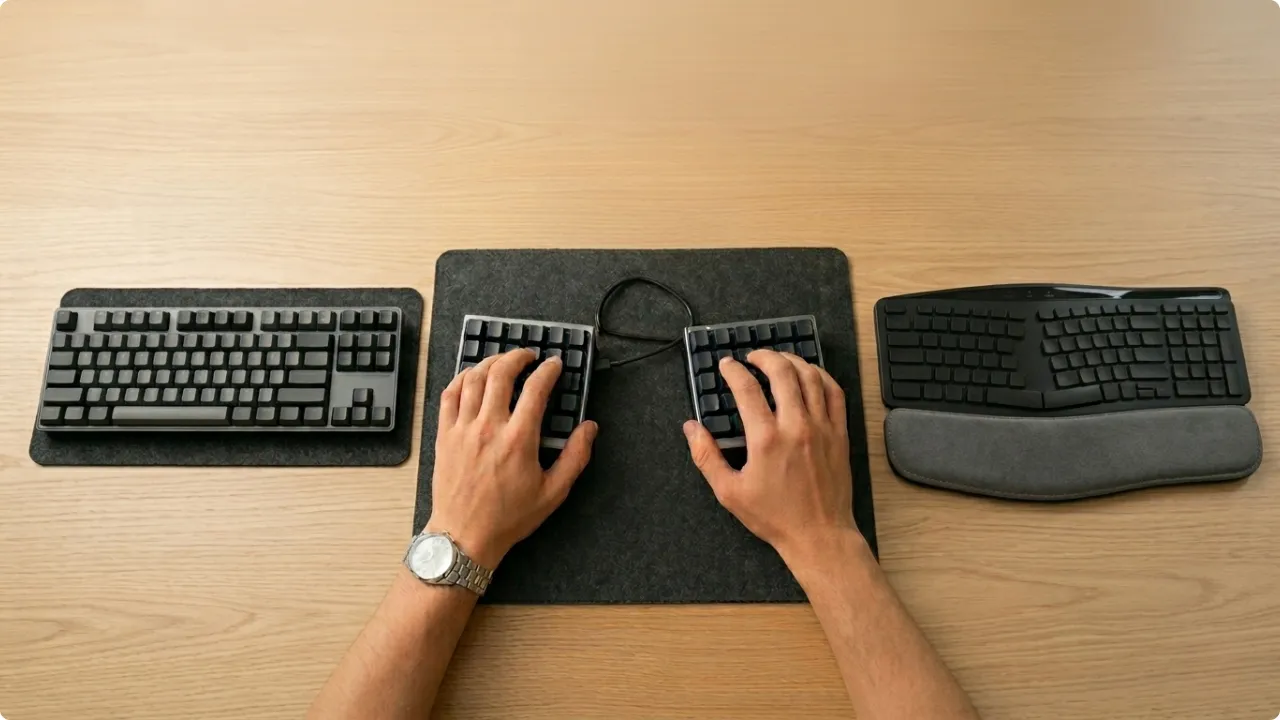
The type of ergonomic keyboard you choose determines which physical problems it actually addresses — and how much of an adjustment period you’ll need to get there.
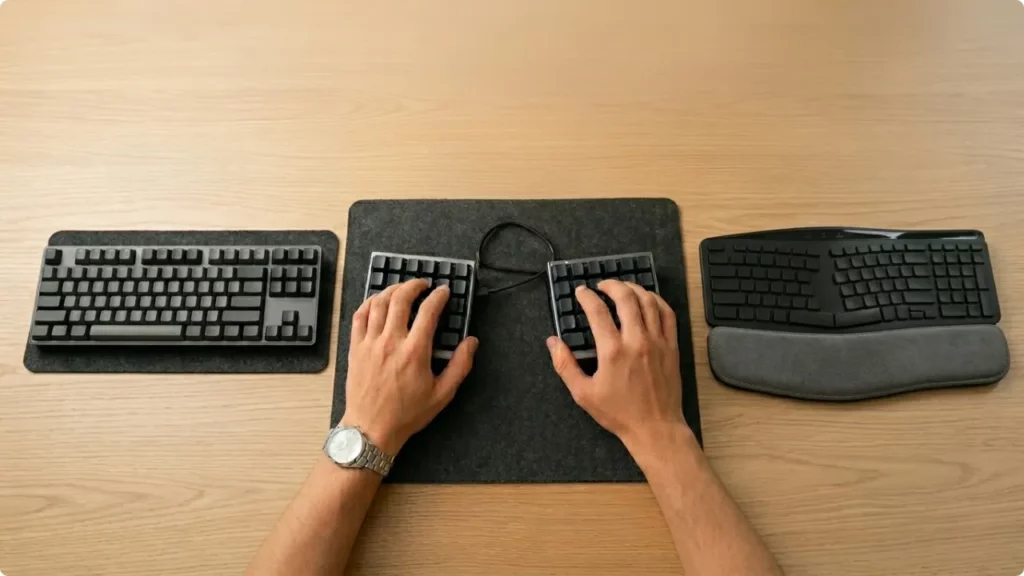
Ergonomic keyboards are designed to solve different problems.
Some change the angle of your hands to ease wrist pressure. Others split the layout to improve arm and shoulder positioning. More compact designs reduce how far your hands need to reach, while alternative layouts focus on keeping your fingers in a more natural resting position.
Understanding what each type does makes it easier to match the keyboard to the discomfort you’re trying to fix — rather than guessing and hoping it helps.
The Various Types of Ergonomic Keyboards Explained
The Main Types of Ergonomic Keyboard
Curved (Wave) Keyboards
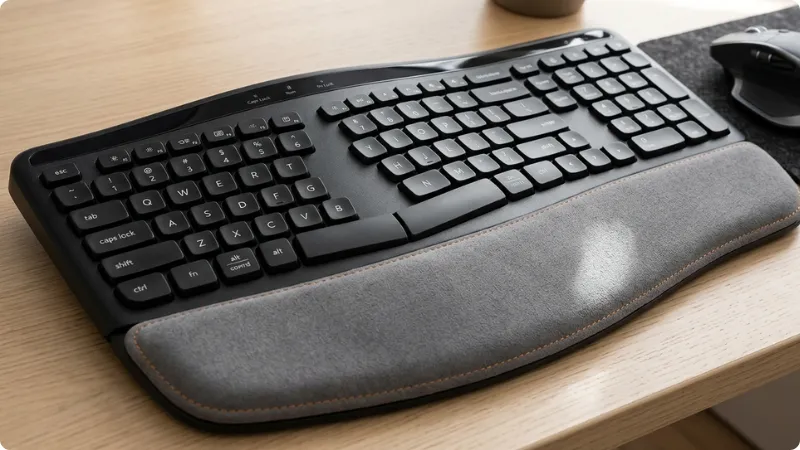
Curved keyboards are among the best ergonomic keyboards for anyone moving away from a standard layout for the first time. It’s the easiest to get used to typing on. The key rows follow a gentle wave or arc rather than a straight line, which positions each key a little closer to the natural reach of each finger.
They look similar to standard keyboards and connect, position, and behave almost identically. The adjustment period is minimal — most people are typing normally within minutes.
What they address: the curved layout reduces the outward angling of the wrists (ulnar deviation) that a straight keyboard requires, and improves how comfortably each finger reaches its keys. They don’t significantly change wrist height or forearm angle.
Suits you if: your discomfort is mild, you’re new to ergonomic keyboards, or you want a low-friction upgrade without any learning curve. A good first step if you type for several hours a day and are starting to notice the effects.
Split Keyboards

Split keyboards divide the layout into two halves — one for each hand. The halves are angled so each hand can sit more in line with the forearm, rather than angling inward, which is typical when using a standard keyboard.
There are two main versions. Fixed-split keyboards keep the halves joined at a set angle — more benefit than a curved keyboard, less disruption than going fully separate. Fully separable split keyboards let you position each half independently, which gives the most control but comes with the steepest learning curve, particularly if you’re not a touch typist.
What they address: split keyboards directly tackle ulnar deviation. Separable versions also allow you to widen the hand position, reducing shoulder tension caused by reaching to a narrow keyboard. With a compatible tenting accessory, a split keyboard can also move toward a near-vertical position — useful for anyone who needs to type with minimal forearm rotation, including during recovery from wrist or arm surgery.
Suits you if: forearm fatigue, wrist pain, or shoulder tension is your main concern. Also the most practical option if your aim is to minimise forearm pronation.
A fixed-split is the better starting point if you’re not sure. It delivers meaningful ergonomic benefit without the full adjustment period of a separable design.
Compact Ergonomic Keyboards
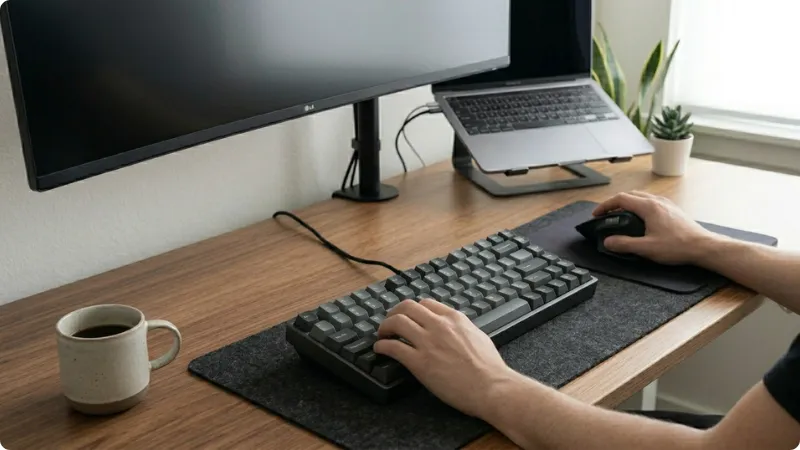
Compact keyboards approach ergonomics differently. Rather than reshaping the key layout, they reduce the overall footprint — most commonly by removing the number keypad. That one change brings the mouse closer to the keyboard, reducing how far the right arm has to extend to reach it.
The best compact keyboards that don’t lose function keys are tenkeyless (TKL), which removes the numpad and keeps everything else, and 75%, which additionally compacts the function row and navigation cluster into a tighter layout.
What they address: the reduction in arm reach is the main ergonomic benefit. For people whose shoulder or right-forearm discomfort traces back to mousing rather than typing position, a compact keyboard can make a more noticeable difference than a curved or split design.
Suits you if: shoulder tension or forearm fatigue is the issue, especially if it builds up after sessions involving a lot of mouse work. Also a practical choice for smaller desks where a split board wouldn’t fit.
Ortholinear Keyboards
Ortholinear keyboards arrange keys in a straight grid — columns running vertically, rows running horizontally, with no offset between them. Standard keyboards stagger each row to the left, a legacy of typewriter mechanics rather than any ergonomic rationale.
They’re a more advanced type of keyboard, and most are programmable. They ship in QWERTY as standard but can be remapped to an alternative layout — Dvorak or Colemak, for example — which is part of their appeal in the mechanical keyboard community.
What they address: the grid layout reduces finger travel — each finger moves in a straight line to its keys rather than at a slight angle. That’s a genuine ergonomic benefit, though a modest one compared to what a split or curved keyboard delivers. Ulnar deviation and forearm angle aren’t addressed, since the two halves remain close together.
Suits you if: you’re drawn to a more customisable setup and want a keyboard you can adapt over time. Not the most direct route if reducing typing discomfort is the primary goal.
Connectivity and Switch Types
The following aren’t keyboard types in their own right — they’re characteristics that apply across all the designs above. They’re worth understanding before you buy because they affect day-to-day usability and, in some cases, whether a keyboard will work well in your specific setup.
Wired vs Wireless
Most ergonomic keyboards are available in wired or wireless versions, and some offer both. Wired keyboards connect via USB and require no charging or battery management. They’re reliable and suit a fixed desk setup where cable clutter isn’t a concern.
Wireless keyboard connection types worth knowing:
Bluetooth — pairs to multiple devices, making it better suited to people switching between a laptop, tablet, or phone, but it can have occasional lag.
2.4GHz receiver — more stable connection, better suited to a fixed home office setup where the keyboard stays connected to one device.
Wireless keyboards suit setups where a cleaner desk matters, or where the keyboard needs to connect to multiple devices.
The majority of wireless ergonomic keyboards are rechargeable rather than battery-powered — charge frequency varies considerably by model, from weeks to several months depending on use.
For most home office setups, the choice comes down to whether you’d rather manage cables or manage charging. If you’re considering going cordless,, it’s worth understanding the connection differences between 2.4GHz wireless and bluetooth. Neither is tethered, but they suit different types of users.
Mechanical, Membrane, and Scissor-Switch
Switch type affects how keys feel and sound — things that are worth some consideration if you type for long periods, share a workspace, or take calls from your desk.
Mechanical switches provide tactile feedback when a keypress registers, which means you don’t need to press all the way down to actuate the key. Over a long typing session, that reduced keystroke depth can lower impact on fingers and joints.
The trade-off is noise. Clicky mechanical switches are audible; linear mechanical switches (which actuate without a tactile bump) are quieter. If noise is a concern, ‘quiet’ mechanical keyboards use dampened switches that reduce the sound considerably.
Membrane keyboards are quieter and cheaper, with a softer, less defined keystroke feel. They’re the most common type in budget ergonomic keyboards.
Scissor-switch keyboards sit between the two: quieter than mechanical, with a slightly more defined feel than membrane. Common in low-profile designs and wireless keyboards aimed at office use.
The type of keyboard matters more than most people realise when they first start looking. Choosing based on price or appearance often means going through an adjustment period without getting the benefit you were after.
If you haven’t yet worked out what’s causing your discomfort, it’s worth starting there before choosing a keyboard type. The setup itself — forearm angle, wrist position, desk height — can cause the same symptoms as a poorly matched keyboard.