
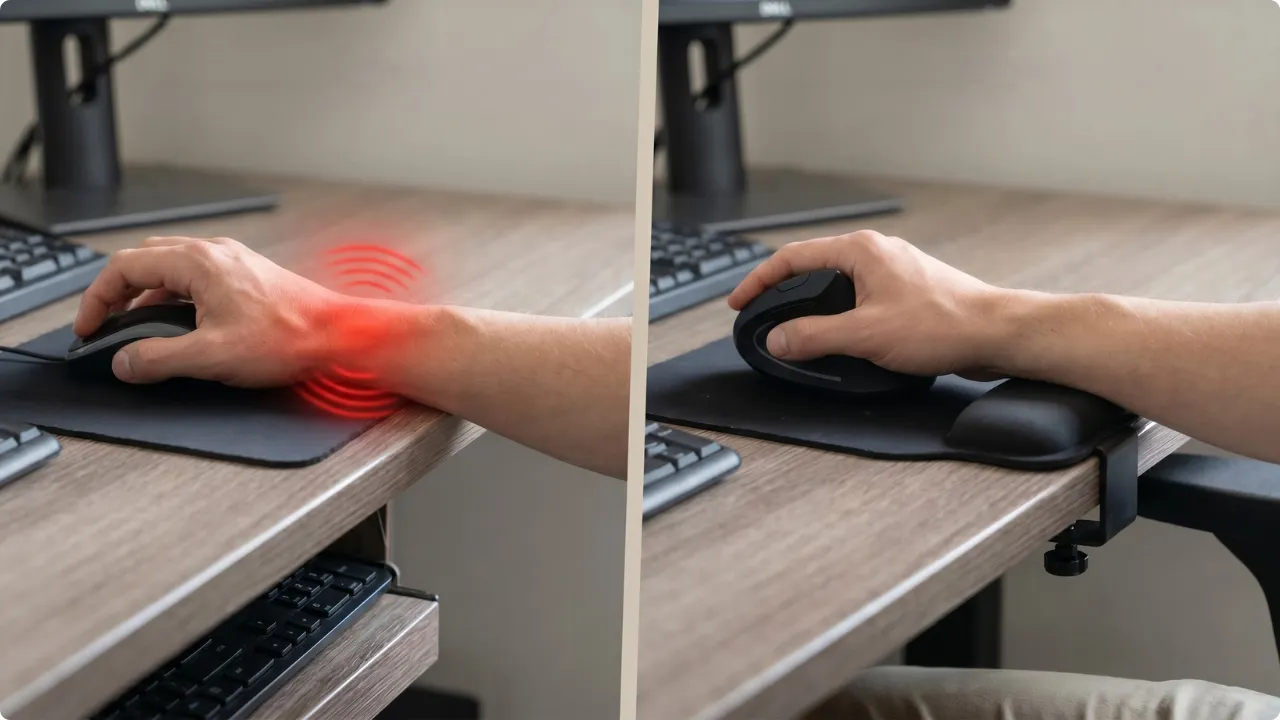
Suffering through wrist pain using a mouse kills productivity. The sooner you can identify the source of the pain, the faster you can put a fix in place.
Repeating the same motions with the same ligaments is a cause of Repetitive Strain Injury (RSI) and Carpal Tunnel Syndrome. The pain can subside, but without addressing the root cause, it’s likely to return.
How to Treat and Prevent Wrist Pain from Mouse Use
Why It Hurts to Use a Mouse
Your wrist wasn’t designed for the kind of repetitive, small-range movement that mouse use demands hour after hour.
Most of the damage happens gradually. Each session creates tiny amounts of stress on the tendons and surrounding tissue — micro-tears that the body needs time to repair. When you’re back at the desk before that repair is complete, the stress compounds.
Two habits make it significantly worse. The first is gripping the mouse harder than you need to — the death grip — which keeps the muscles in your hand and forearm in a state of constant tension. The second is anchoring your wrist to the desk and pivoting your hand from that fixed point.
Instead of your whole arm absorbing the movement, a single point on your wrist takes the load, pinching tissue and compressing the nerves running through it.
Neither feels like a big deal in the moment. Over a long session, both add up.
The ROSA Assessment for Office Ergonomics
If you were in an office, complaining to your manager about wrist pain from mouse use, your employer would be obligated to act. In the UK, employers are legally required to carry out Display Screen Equipment (DSE) assessments under the Health and Safety (Display Screen Equipment) Regulations — and tools like the ROSA (Rapid Office Strain Assessment) are the kind of framework they’d use to investigate your setup systematically.
When you’re working from home, you’re your own manager. Without the expertise, you’re largely at the mercy of forum discussions and advice about what “may” help.
In the video below, Matt Jeffs of TuMeke Ergonomics walks through a full ROSA assessment, showing you exactly how a professional evaluates a workstation. It’s a 15-minute watch, but worth it if you want to understand what a proper assessment actually covers — and how much of it comes down to small adjustments rather than expensive equipment.

Even if you don’t watch the full video, the principle behind ROSA is worth understanding: wrist pain rarely has a single cause. It’s usually the result of several small setup problems compounding each other.
What the Assessment Is Actually Looking At
ROSA evaluates the whole workstation as a system — chair height, monitor position, keyboard placement, and mouse use together rather than in isolation.
For mouse use specifically, it scores things like how far the mouse sits from the keyboard, whether your wrist is bent or straight while using it, and whether your elbow is at a comfortable angle or raised and reaching. A high score in any one area flags a risk. Several moderate scores together can flag just as much of a problem.
That’s the part most people miss when they go looking for a fix — they adjust one thing and wonder why nothing changes.
How to Set Up Your Mouse Position Correctly
The mouse should sit close to the keyboard, level with it, so your arm doesn’t have to reach or cross your body to use it. Your elbow should be at roughly a 90-degree angle with your forearm resting lightly on the desk — not hovering, not pressing down hard.
From there, the movement should come from your elbow and shoulder, not your wrist. Think of your hand as something that steers the mouse rather than drives it. Your wrist should stay roughly neutral — not bent upward, not twisted to one side.
If you find your wrist bending upward when you use the mouse, your mouse surface is too high. Lowering your chair slightly or raising the desk surface can correct it.
Computer Mouse Grip — and How to Hold It Correctly
There are three ways people naturally hold a mouse.
The palm grip
With this, your whole hand rests on the mouse with the palm in full contact — the most common default and the one that creates the most sustained pressure on your wrist and tendons over a long session.
The claw grip
With this, the palm is raised slightly, with fingers arched and just the fingertips and lower palm making contact.
The fingertip grip
This goes further, with only the fingertips controlling the mouse and the palm off it entirely — the least contact, the most neutral wrist position.
Most people default to a palm grip without thinking about it. If you’re dealing with wrist pain, it’s worth trying a claw grip style or fingertip style to reduce the contact load, even if it feels unfamiliar at first.
Beyond grip style, most people also hold their mouse tighter than they need to, especially during focused work or anything that requires precision.
Loosen your hand. Your fingers should rest on the buttons rather than curl around them. Clicks should be light — the mouse doesn’t need force, and pressing harder doesn’t make anything more accurate.
When you move the mouse, let go of it slightly between movements rather than maintaining a constant grip. It sounds minor but it gives the muscles in your hand brief recovery moments across the session rather than holding tension the entire time.
Take Breaks — and How to Make it a Habit
Long unbroken sessions are harder on your wrist than the same total time split up. Frequency matters more than duration.
Every twenty minutes or so, take your hand off the mouse completely. Let your arm drop to your side, shake your hand out gently, and give your wrist a moment to decompress. It doesn’t need to be long — twenty or thirty seconds is enough to interrupt the pattern of constant tension.
If you find yourself forgetting, a simple timer or a browser extension that prompts breaks will do the job without you having to think about it.
Equipment That Helps
Correcting your setup and habits will take you most of the way. For some people, the right equipment makes the remaining difference.
A mouse pad with wrist support is the lowest-barrier starting point — it keeps your wrist from pressing directly onto a hard desk surface and encourages a more neutral position while you use the mouse. If you’re already dealing with some discomfort, it’s worth trying before making any larger changes.
It’s worth knowing that a wrist rest is a support aid, not a solution. They can do more harm than good. If you do decide to try one, knowing how to use a wrist rest properly can help you make the rest work for you rather than against you.
Beyond a wrist rest, an ergonomic mouse is the next step — and the best ergonomic mice for wrist pain fall into three types: vertical, trackball, and silent.
A vertical mouse is a more significant change. It holds your hand in a handshake position rather than the standard flat rotation, which removes the forearm pronation that a conventional mouse creates. It takes a few days to adjust to but many people find it eliminates the problem entirely.
A trackball removes wrist movement altogether — your hand stays still and your thumb or fingers control the cursor. It’s not for everyone but for people whose wrist pain is persistent, it’s worth considering.
When It’s More Than Mouse Posture
It’s worth knowing that wrist pain from mouse use doesn’t always originate in the wrist.
One pattern that comes up repeatedly is pain that turns out to be related to neck posture or shoulder tension — the wrist is where you feel it, but it’s not where the problem starts. If you’ve corrected your setup, adjusted your grip, and the pain persists, it may be worth speaking to a physiotherapist rather than continuing to troubleshoot the desk.
Mouse use can also be an early indicator of Carpal Tunnel Syndrome, which involves compression of the median nerve at the wrist and produces symptoms including tingling, numbness, and weakness in the hand. That’s a medical conversation though, not a desk setup one.