
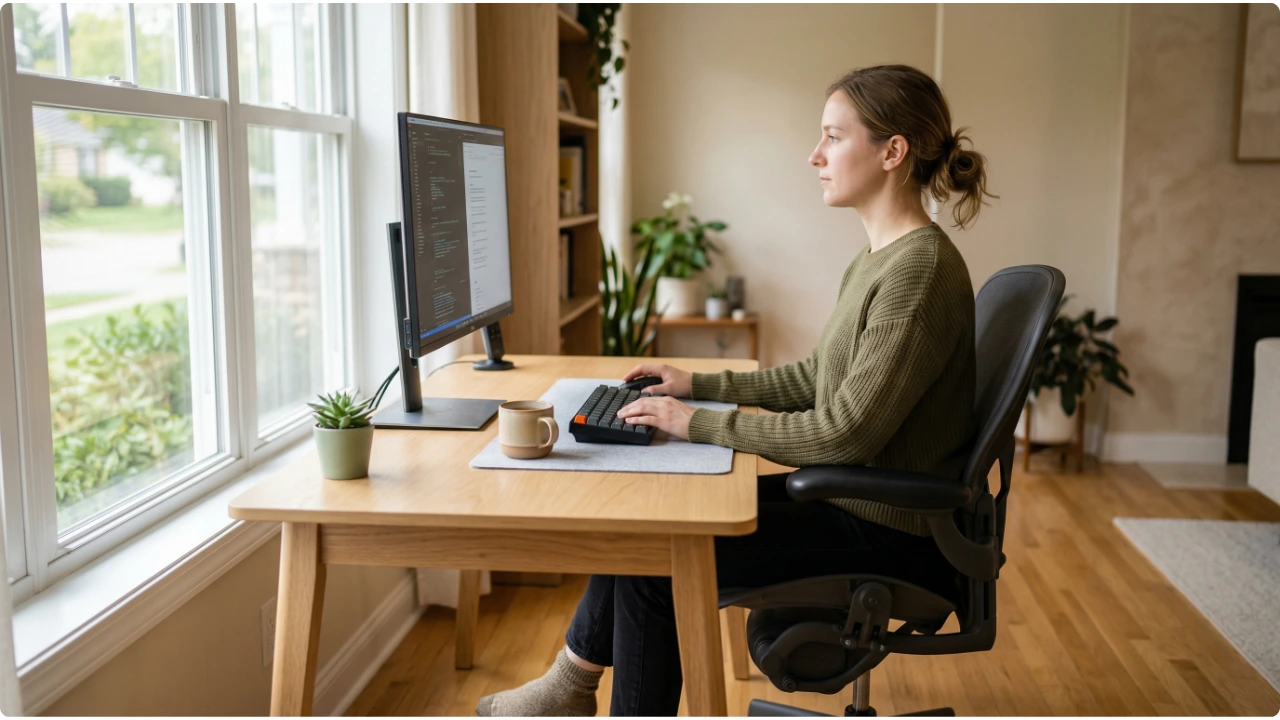
Most people set their monitor up once and never touch it again. Here is what that decision is quietly doing to their neck, eyes, and posture.
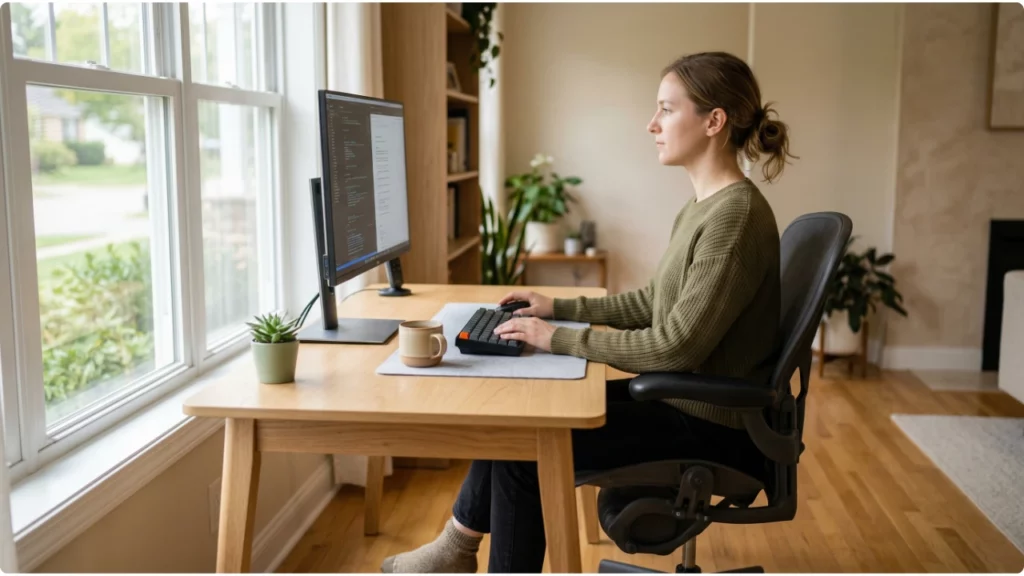
Sit back from the screen. Extend one arm toward it. The fingertips should nearly touch the display.
That single check is one of the most reliable starting points for a well-positioned monitor. Most people are closer than that — close enough that the screen fills the field of vision in a way that feels normal simply because it always has.
Distance is just the beginning.
- The height of the screen changes how the head sits on the neck for the entire working day.
- The angle affects whether overhead lighting reflects off the surface and forces the eyes to work against it.
- The horizontal position — whether the screen is directly in front of the body or slightly to one side — determines whether the neck is rotating subtly, all day, without ever registering as a problem until it becomes one.
None of these things announce themselves as issues. That is what makes them worth understanding.
The 5 Variables You Ought to Know
Interesting Fact: The average weight of an adult head is roughly 4–5 kg in a neutral, upright position.
Tilt it forward by 30 degrees — the kind of subtle lean that happens when a screen is too low or too far away — and the effective load on the cervical spine rises to around 18 kg. Sustained across a working day, repeated across a working week, that load becomes the source of neck aches, upper back tension, and shoulder discomfort that rarely get traced back to a screen that was never properly positioned — or a keyboard that was never considered alongside it.
Most people blame the chair. Or stress. Or a bad night’s sleep.
The screen is often the more likely culprit — and the more straightforward fix.
The eyes add another layer to this. Their natural resting position is not straight ahead. It sits at a slight downward angle, typically 10–15 degrees below horizontal. This is the angle at which the eyes are most relaxed and require the least effort to hold focus.
A screen positioned at or above eye level works against this constantly.
For laptop users, this trade-off is built in. Without an external keyboard, the screen height is determined by where the keyboard sits comfortably — rarely where the eyes want it. A compact external keyboard decouples the two, letting the screen sit where it should without the typing position suffering for it.
Neither of these things causes an obvious problem in a single session. Combined and repeated across a working week, they become the source of symptoms that are genuinely difficult to trace back to a monitor that was never properly adjusted.
Screen Height — The Most Important Variable
Of all the adjustments available, screen height has the biggest impact on how the body holds itself during a working day.
The goal is straightforward: the eyes should look slightly downward at the screen, not straight ahead and certainly not upward.
A reliable guideline is to position the top edge of the monitor at or just below eye level. This places the centre of the screen in the natural downward viewing zone — right where the eyes want to rest without effort.
In practice, most people have their screens too high.
Monitors pushed up on stacks of books. Laptop stands cranked to their maximum. The instinct is that higher feels more ergonomic. It is usually the opposite.
Signs the screen is too high:
- The chin tilts upward to see the screen comfortably
- Tension builds at the base of the neck and across the top of the shoulders
- The upper back arches slightly to compensate
Signs the screen is too low:
- The head drops forward and the upper back rounds
- There is a tendency to hunch as the session continues
- Stiffness tends to sit lower, between the shoulder blades
One group that consistently needs a lower screen position than standard guidance suggests is people who wear progressive or bifocal lenses. Looking through the reading zone of a progressive lens requires the chin to lift if the screen is too high — creating exactly the kind of sustained upward tilt this adjustment is trying to eliminate.
Screen Distance — Close Enough to Read, Far Enough to Sit Back
The arm’s length guideline holds up well as a starting point.
Sitting back and extending one arm toward the screen, the fingertips should come close to touching the display. In practical terms this works out to roughly 50–65 cm for most people and most monitor sizes.
Too close and the eyes work harder to focus, often without the person noticing until fatigue sets in later in the day.
Too far and the natural response is to lean in — not once, but gradually, until it becomes the default sitting position.
Screen size and resolution affect this. A larger monitor can sit a little further away. A high-resolution display with small default text may pull people closer than they should be.
Which leads to one of the most practical fixes available: if leaning in feels necessary to read the screen, the answer is not to move the monitor closer.
Increase the text size. Adjust the zoom. Leaning forward is not a neutral posture — it is the start of a chain of compensations that accumulates gradually across the working day.
Monitor Position — Centred on the Body, Not the Desk
The screen should sit directly in front of the person using it.
Not centred on the desk. Not positioned where the cable reaches. Directly in front of the body — aligned with the nose, the sternum, the natural forward-facing position of the head.
This distinction matters more than it might seem.
At an L-shaped desk, the monitor often ends up positioned toward one side. In shared or converted spaces, the screen goes where there is room. The result is a working posture that involves a small but sustained rotation of the neck to face the screen.
Small rotations sustained over hours cause real discomfort. The muscles responsible for holding that position fatigue, and the body begins to compensate in ways that extend well beyond the neck.
A swivel chair can help here — turning the whole body to face a screen that is off to one side removes the neck rotation entirely. The limitation is that most people do not do this consistently for a screen they use regularly. The neck rotates instead, the habit forms, and the discomfort follows.
Centring the screen on the body is one of the simplest adjustments available and one of the most commonly missed.
Monitor Tilt — A Small Adjustment With a Meaningful Effect
Most monitors can be tilted backward or forward on their stand. Most people leave them wherever they arrived.
The standard recommendation is a slight backward tilt of around 10–20 degrees. This brings the screen more in line with the natural downward viewing angle of the eyes, reducing the need to adjust head position to see the display comfortably.
Tilt also affects glare. Tilting the screen backward changes the angle at which light from above — overhead lighting, skylights — reflects off the surface. If glare from ceiling lights is a persistent problem, adjusting tilt is often the first thing worth trying before repositioning the monitor entirely.
When to tilt more: overhead lighting is causing reflections that are difficult to avoid by repositioning.
When to tilt less, or slightly forward: the screen is positioned higher than ideal and a forward tilt partially compensates by angling the display downward.
The built-in tilt adjustment on most monitors is sufficient for this. It is one of the few ergonomic improvements that requires no additional hardware.
For those whose monitor does not tilt — or whose stand offers limited adjustment — a monitor arm or monitor riser can open up more positioning options.
Glare — The Variable That Undoes Everything Else
A screen positioned at the correct height, distance, and angle can still cause eye fatigue and awkward posture if glare is present.
The human eye adapts to glare quickly enough that people stop noticing it consciously. The posture adjustments that follow — a slight lean to one side, a forward tilt of the head to avoid a reflection — happen without awareness.
Placing a monitor facing a window creates a contrast between the bright light source and the screen that forces the eyes to work harder. See point 5 in this guide to achieving an ergonomically correct desk setup for how lighting placement fits into the broader picture.
A window directly behind the viewer creates a different problem — it reflects in the screen and shifts throughout the day as light conditions change.
The most reliable position is with windows to the side — the screen perpendicular to the window rather than parallel to it.
Overhead lighting causes its own version of this. Strip lighting and recessed ceiling lights reflect off the top portion of the screen. A slight backward tilt is often enough to redirect that reflection away from the viewer’s eyeline.
Anti-glare screen surfaces help, but they do not solve a badly positioned setup. Dealing with placement first is the more effective order of operations.
How to Check Your Own Setup
The best time to check a screen setup is before making any conscious adjustments — sitting in the position the body naturally defaults to after a few minutes of work, not the position adopted when someone is paying attention to their posture.
Screen height: Close the eyes for a moment, then open them and note where the gaze naturally lands. It should fall near the centre of the screen or slightly below. If it lands above the screen, the monitor is too low. If it lands near the bottom edge, the monitor is too high.
Screen distance: Sit back and extend one arm toward the screen. The fingertips should nearly reach the display without leaning forward. If the text still requires effort to read at that distance, increase text size or zoom before moving the screen closer.
Horizontal position: Close the eyes, relax the neck completely, then open them. Where the gaze naturally falls is where the body considers straight ahead. If the screen is not there, it is offset.
Glare: Look at the screen surface rather than through it. Visible reflections of windows or light fittings are worth addressing — the visual system is working to filter them out, and that effort accumulates.
Reading the symptoms: Tension at the base of the skull points to a screen that is too high. Aching between the shoulder blades and forward rounding points to a screen that is too low, or a forward lean caused by small text. Eye fatigue and headaches that build across a session point toward glare, brightness, or refresh rate. Neck stiffness on one side often points to a screen that is offset from the body’s centre.
When adjustments are made, give them a few working days before concluding they are not helping. A screen that has been in the wrong position for a long time will feel unfamiliar when moved to the correct one. That initial strangeness is not a signal the new position is wrong — it is a signal the old one had become normal in ways that were not necessarily correct.