
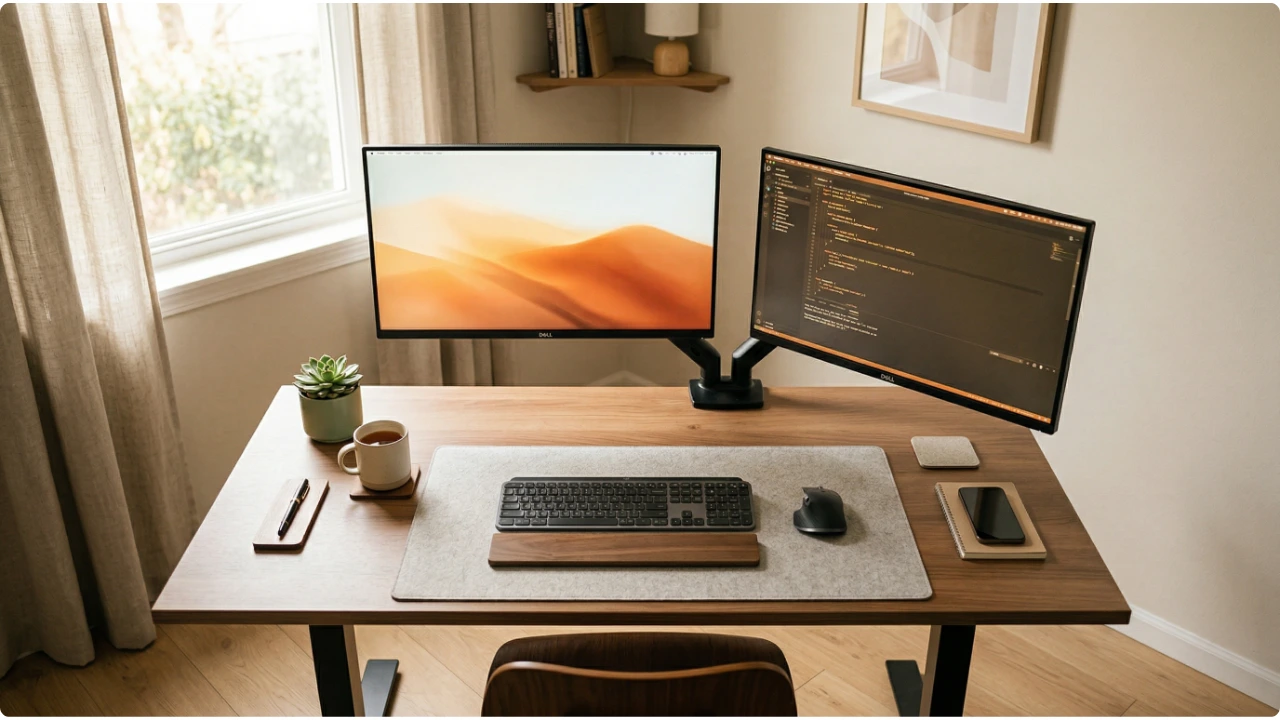
Two monitors on a narrow desk is achievable — but the standard advice assumes space that isn’t there. Here’s how to make it work.
The case for a second monitor is well established. More screen space, fewer application switches, a dedicated area for reference material alongside the primary working window. For most people it genuinely improves how they work.
The challenge on a compact desk is that most dual monitor guidance was written for setups with generous width and depth. Move that advice onto a narrow desk and problems follow — not because two monitors cannot work in a smaller space, but because the arrangement needs to account for constraints that standard advice does not address.
Getting it right comes down to understanding what a compact desk can and cannot support, and making deliberate decisions about screen arrangement before anything is bolted down or plugged in.
What to Decide Before Anything Gets Plugged In
Why Dual Monitors on a Small Desk Need a Different Approach
Most dual monitor advice defaults to a symmetrical side-by-side arrangement with both screens treated as equals — same height, same distance, keyboard centred between them.
On a desk with generous width that works reasonably well. On a compact desk it creates a specific set of problems.
The available width limits how far apart the screens can sit. The available depth affects how far back both monitors can be pushed. And the keyboard — which anchors the body’s position at the desk — ends up competing with the screens for the limited space directly in front of the user.
The result is a setup that looks balanced but does not work comfortably. The body is not centred on either screen. The neck rotates constantly during typing work. The screens are closer than they should be because the desk depth does not allow them to be pushed back to arm’s length.
None of these problems are solved by a better chair or a seat cushion. They are positioning problems, and they need positioning solutions.
The starting point is accepting that two monitors on a compact desk almost always means one primary screen and one secondary screen — and designing the arrangement around that reality from the beginning.
Side by Side — Making It Work in a Tight Space
Side by side remains the most practical arrangement for most compact desk setups, provided the distinction between primary and secondary use is clear before anything is positioned.
The primary screen handles active work — the application being typed into, the document being edited, the window requiring the most sustained attention. It sits directly in front of the body, at arm’s length, at the correct height.
The secondary screen handles reference and monitoring — content that is read, glanced at, or consulted rather than actively worked in. It sits to the side, angled inward to face the viewer when they turn toward it.
On a compact desk this is not a compromise. It is the correct arrangement. The desk width determines how far to the side the secondary screen sits. The frequency of use determines how far the inward angle needs to bring it into a natural viewing position.
A secondary screen consulted several times an hour can sit at a moderate angle close to the primary. One that is glanced at occasionally can sit further to the side — the rotation happens infrequently enough that it does not accumulate into strain.
The Keyboard Anchors the Body — Not the Desk
This is the detail that resolves most compact dual monitor discomfort, and it is rarely mentioned in general setup guides.
The keyboard determines where the body sits. Not the desk. Not the midpoint between the two screens. Wherever the keyboard is positioned, that is where the body faces — because that is where the hands are during active work.
On a compact desk, centring the keyboard between two monitors means it is not properly aligned with either screen. The body sits between the two displays, facing neither of them directly, and rotates to face whichever screen is active during typing work.
That sustained rotation — small, constant, and largely unconscious — is the source of the neck and upper back discomfort that compact dual monitor users most commonly experience.
It is easy to misattribute. The discomfort feels like a posture problem or a chair problem. A seat cushion gets added. The chair gets adjusted. The discomfort persists because the actual cause — a screen that is not in front of the body during typing work — has not been addressed.
The fix is straightforward: position the keyboard directly in front of the primary screen, centred on the body, exactly as it would be in a single monitor setup. The primary screen is then directly ahead. The secondary screen is to the side. The body never needs to rotate during typing work.
On a compact desk this means the primary screen is not centred on the desk. It is centred on the body. Those are rarely the same point, and the body’s position is the one that matters.
Vertical Stacking — The Space-Saving Alternative
When desk width makes a comfortable side-by-side arrangement genuinely difficult, vertical stacking is worth considering.
Vertical stacking places one monitor directly above the other rather than beside it. The footprint on the desk surface is the same as a single monitor setup — which makes it the most space-efficient dual monitor arrangement available for a narrow desk.
The ergonomic considerations are different from side by side and worth understanding before committing to this arrangement.
Which screen goes on top: The primary screen — the one used for active typing work — sits at the bottom, at the standard height position with the top edge at or just below eye level. The secondary screen sits above it.
Placing the primary screen on top would require the eyes to look upward for the majority of the working day, which loads the cervical spine, becoming the source of neck aches and upper back tension – the reason for getting the screen positioned correctly.
The head movement consideration: Vertical stacking replaces horizontal neck rotation with vertical head movement when switching between screens. For most people this is a better tradeoff on a compact desk — the primary screen is directly ahead, the secondary is consulted by looking upward rather than turning to the side.
The secondary screen should not be so high that looking at it requires sustained upward tilt. It is best suited to content that is glanced at briefly rather than read at length.
Portrait rotation: A secondary screen in portrait orientation — rotated 90 degrees to sit vertically — works particularly well in a vertical stack for content like documents, code, or long web pages where the additional vertical height is more useful than horizontal width.
Any VESA-compatible monitor can be physically rotated with a monitor arm that supports pivot. The operating system handles the display orientation in settings — on both Windows and macOS this is a straightforward rotation option in the display preferences. No additional software or drivers are needed.
A monitor marketed specifically as a vertical monitor is simply a standard monitor with a stand that includes pivot as a built-in feature. It is not a fundamentally different product.
Screen Height, Distance, and Tilt for Both Monitors
The correct screen positioning principles apply to both screens in a dual monitor setup — but on a compact desk, where adjustment room is limited, getting these right for two screens simultaneously requires more deliberate planning.
Height consistency: Both screens should sit at the same height — top edges level with each other. When monitors are at different heights the eyes make a vertical adjustment every time focus shifts between them. Over a working day this contributes to fatigue in a way that is easy to overlook.
On a compact desk where a monitor arm is being used, height consistency is straightforward to achieve. Where two separate stands are used, matching the height of both is worth checking carefully before finalising the arrangement.
Depth consistency: Both screens should sit at roughly the same distance from the viewer. A significant difference in depth means the eyes are refocusing across a greater range each time attention shifts between screens.
On a compact desk, depth is often the more constrained dimension. If the desk is shallow, both screens may need to be pushed as far back as the desk allows — which makes a monitor arm more useful here than a stand, since an arm can position the screen further back than a stand base would allow on a shallow surface.
Tilt: Both screens benefit from the standard 10–20 degree backward tilt. On a compact desk where the screens are necessarily closer than ideal, a slight additional backward tilt on both can partially compensate by increasing the effective viewing angle without moving the screens physically further away.
Monitor Arms and Stands for Compact Desks
For a compact desk, a monitor arm is the most practical hardware solution for a dual monitor setup.
Two monitor arms — one per screen — remove the stand footprint from the desk surface entirely. The desk space directly in front of the keyboard is freed up. Each screen can be positioned precisely and independently, adjusted for height, depth, tilt, and angle without the constraints of a fixed monitor stand.
On a shallow desk in particular, a monitor arm can extend the screen further back than any stand would allow — which directly addresses the depth constraint that compact desks impose.
The checks before buying are the same as for any monitor arm. VESA compatibility — most monitors include VESA mounting holes on the back, typically in a 75x75mm or 100x100mm pattern, but some budget and ultra-thin models do not. Weight capacity — each arm is rated for a maximum screen weight, listed in the monitor’s specifications. Desk compatibility — most clamp mounts work on standard desk edges, but very thick desktops, glass desks, or desks with a lip can make clamping difficult.
Two single ergonomic monitor stands are the alternative where arms are not suitable. The practical framing for a compact desk is two individual stands rather than one wide dual monitor shelf — two singles give independent height and position adjustment for each screen, which a wide shelf does not.
Stands with storage space beneath are worth considering on a compact desk where the stand footprint is unavoidable — the space underneath becomes useful rather than wasted.
Glare, Lighting, and Two Screens
A second monitor introduces additional glare variables that a single screen setup does not have.
Two screens facing slightly different directions reflect light from different angles. A light source that does not cause a problem on the primary screen may reflect directly off the secondary — particularly where the secondary screen is angled inward and its surface faces a window or overhead light at a different angle to the primary.
On a compact desk where repositioning options are limited, this is worth checking before the setup is finalised rather than after. Adjusting the inward angle of the secondary screen slightly, or applying a small additional tilt, can redirect a reflection without requiring the screen to be repositioned entirely.
Testing and Adjusting Your Setup
Once both screens are positioned, the most useful thing to do is sit in the normal working position — not an adjusted, consciously corrected position — and check a few things before treating the setup as final.
Is the keyboard directly in front of the primary screen?
If the body has to rotate even slightly to type while looking at the primary screen, the alignment needs adjusting.
Can both screens be reached at arm’s length without leaning forward?
On a compact desk this is the constraint most likely to need compromise — if it cannot be achieved, increase text size on both screens before accepting a closer distance as the default.
Are both screens at the same height?
Switch focus between them a few times and notice whether the eyes are making a vertical adjustment. If they are, the height difference is worth correcting.
After a first full working session with the new setup, note where any tension or discomfort has accumulated. Neck base or top of shoulders points to a screen that is too high, or a secondary screen requiring more rotation than expected. Between the shoulder blades points to forward lean — check distance and text size. One-sided neck stiffness almost always points to the secondary screen position.
Give the setup a few days before drawing conclusions. A new arrangement feels unfamiliar before it feels correct, and the body takes time to adjust to a position that is better than the one it adapted to previously.