
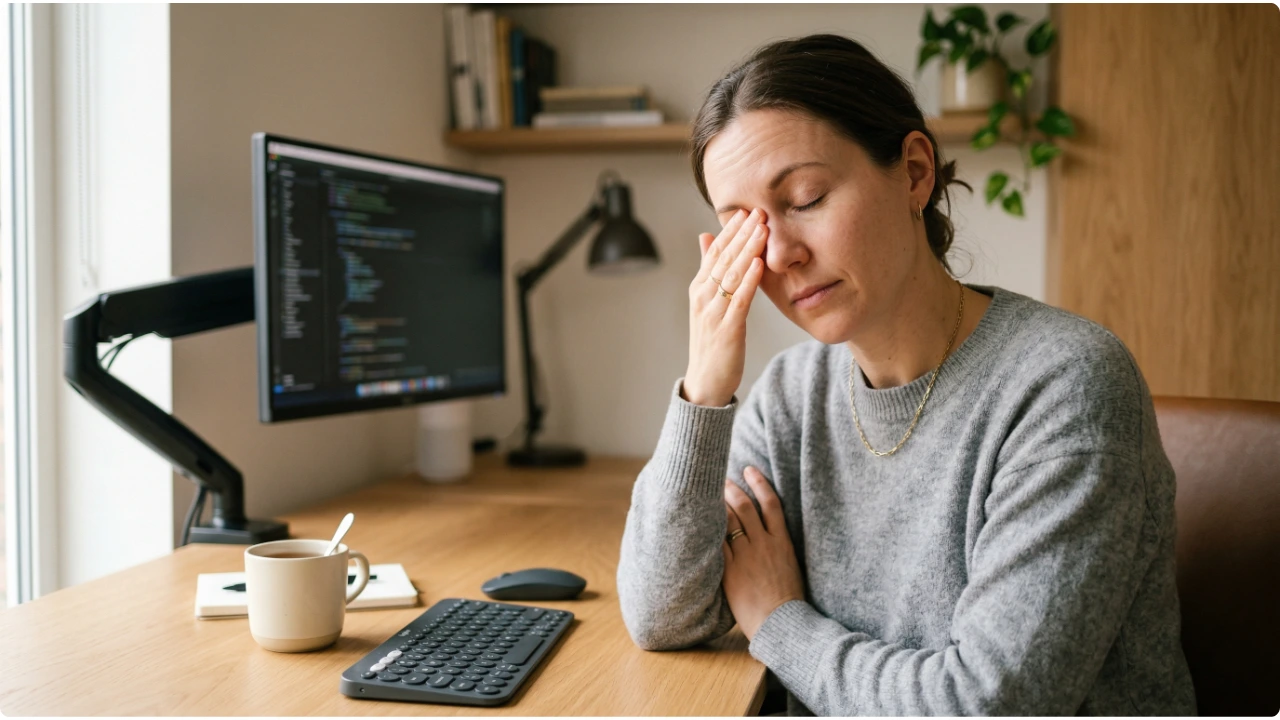
Eye strain from screen use is common, uncomfortable, and largely preventable. Most of the fixes are simpler than people expect.

Spending long hours in front of a screen does not have to mean tired, dry, or aching eyes by the end of the day.
For most people, eye strain from computer use is not inevitable. It is the result of a combination of fixable things — screen settings that were never adjusted, lighting that works against the display, habits that developed without any conscious decision being made.
The symptoms are familiar enough. Eyes that feel dry or gritty. Blurred vision that clears when blinking. Headaches that build across a session. A heaviness around the eyes that arrives reliably in the afternoon and gets blamed on tiredness rather than the screen.
Understanding what causes these symptoms makes them considerably easier to address.
Causes, Fixes, and Habits Worth Knowing
Computer Eye Strain — Symptoms and What Causes Them
Computer eye strain — sometimes referred to as digital eye strain or computer vision syndrome — is not a single condition.
It is a collection of symptoms that develop when the eyes are working harder than they need to for a sustained period. The screen itself is rarely the sole cause. More often it is a combination of how the screen is set up, the environment around it, and habits that place unnecessary demand on the visual system over hours of use.
The most common symptoms include:
- Dry, irritated, or gritty-feeling eyes
- Blurred or occasionally double vision
- Headaches, particularly across the forehead or behind the eyes
- Tired or heavy eyes, especially in the afternoon
- Increased sensitivity to light toward the end of a working session
- Difficulty refocusing when looking away from the screen
None of these symptoms indicate permanent damage. They are signals that something in the setup or working habits is placing more demand on the eyes than necessary — and that something is worth adjusting.
The 20-20-20 Rule — The Simplest Fix Available
The eyes are not designed to hold focus at a fixed distance for hours at a time.
When attention is locked onto a screen, the muscles responsible for adjusting the lens of the eye — allowing it to focus at different distances — are held in a sustained contracted state. Over time this produces a fatigue that is felt as heaviness, aching, or difficulty refocusing when looking away.
The 20-20-20 rule addresses this directly and requires nothing more than remembering to do it.
Every 20 minutes, look at something at least 20 feet away for 20 seconds.
At that distance the focusing muscles relax almost completely. Twenty seconds is enough time for a meaningful reset. Done consistently throughout the working day, it reduces the accumulated muscle fatigue that underlies a significant proportion of screen-related eye tiredness.
It does not require stopping work in any meaningful sense. Looking out of a window, across a room, or at any distant point is sufficient. The distance matters more than what is being looked at.
Setting a repeating timer or using a browser extension that prompts the break removes the need to remember it manually — which is the main reason most people do not do it consistently.
Screen Brightness and Ambient Lighting
The eye adapts constantly to the brightest thing in its field of view.
When the screen is significantly brighter than the surrounding room, the eye is effectively managing two very different light levels simultaneously — the bright screen and the darker surroundings. Over time this is fatiguing in a way that is difficult to attribute directly to screen use.
The reverse creates a different problem. A screen that is dim against a brightly lit room requires the eye to work harder to read it.
The practical target is a screen brightness that feels consistent with the light level in the room — not dramatically brighter, not noticeably dimmer.
Most monitors allow brightness adjustment through physical buttons or an on-screen menu. It is worth revisiting this setting at different times of day and across seasons, since room light levels change considerably between a bright summer afternoon and a dark winter morning.
A very bright screen used in a dark room in the evenings is one of the most common patterns. It feels manageable in the moment. The fatigue tends to arrive later — disrupted sleep, tired eyes the following morning — in ways that are easy to attribute to other causes.
Glare and Reflections
Glare forces the visual system to work against itself.
When reflections from windows, lamps, or overhead lighting appear on the screen surface, the eye attempts to filter them out while simultaneously trying to read the content behind them. This is not a neutral process — it contributes to fatigue that accumulates across a session without ever announcing itself as a glare problem.
The most effective fixes address the source of the glare rather than the screen itself.
Positioning the monitor so that windows are to the side — perpendicular to the screen rather than behind or in front of the viewer — eliminates the most common source of reflected light. Adjusting blinds or curtains during the brightest part of the day handles what repositioning alone cannot.
Overhead lighting reflecting off the top portion of the screen is usually addressable with a small backward tilt of the monitor — enough to redirect the reflection away from the viewer’s eyeline without significantly changing the viewing angle.
Anti-glare screen filters are worth considering where repositioning is not possible. They reduce the intensity of reflections on the screen surface and can make a meaningful difference in environments where light sources are fixed and difficult to control — open plan spaces, rooms with skylights, desks positioned against glass partitions.
They are a practical solution for a difficult environment. They are not a substitute for addressing the underlying positioning problem where that option exists.
Text Size, Contrast, and Display Settings
Small text is one of the most reliable drivers of eye strain at a desk — and one of the most straightforward to fix.
When text requires effort to read at a comfortable viewing distance, the eyes compensate by working harder to resolve the detail. This sustained effort is felt as fatigue, often accompanied by the forward lean that places additional strain on the neck and upper back.
Increasing the system text size — available in the display settings of every major operating system — scales everything on screen without affecting resolution or sharpness. Increasing browser zoom handles the same problem for web-based work.
The target is text that can be read clearly and comfortably at arm’s length without any tendency to lean toward the screen. If it feels slightly larger than necessary at first, that is usually the right size.
Contrast settings interact with this. Most monitors ship with contrast set relatively high. Reducing it slightly in combination with appropriate brightness can produce a softer, less fatiguing image — particularly during long sessions involving reading or writing.
Dark mode — light text on a dark background — reduces the overall luminance of the screen. In a dim environment this can reduce the contrast between the screen and the surrounding room. In a well-lit room it can have the opposite effect. Whether it helps depends on the individual and the environment rather than the setting itself.
Refresh Rate and Flicker
Refresh rate is the number of times per second the screen redraws its image, measured in hertz — Hz.
At lower refresh rates, some monitors produce a subtle flicker that the conscious eye does not register but that the visual system responds to nonetheless. The result is a low-level fatigue and headache that builds over a session and is genuinely difficult to trace back to the screen.
This is more common on older monitors and budget displays. It is also more pronounced at lower brightness settings, where the flicker becomes more perceptible.
If eye fatigue and headaches are a persistent problem despite good screen positioning and appropriate brightness, refresh rate is worth investigating. Most operating systems allow the current refresh rate to be checked and adjusted in display settings. Where a higher rate is available, using it costs nothing.
For people who are sensitive to flicker — and sensitivity varies considerably between individuals — the difference between 60Hz and a higher rate can be significant even for everyday reading and writing work.
Blink Rate — The Habit Nobody Thinks About
Blinking is the eye’s primary mechanism for keeping its surface moisturised and clear.
In normal conversation or when looking around a room, the average blink rate is roughly 15–20 times per minute. During focused screen use, that rate drops — sometimes to fewer than five times per minute — without the person being aware of it.
The result is a dry, gritty, or irritated feeling that is often mistaken for a screen brightness problem or a sign of eye damage. In most cases it is simply the surface of the eye drying out between blinks.
The fix is conscious effort, at least until the habit develops: blink deliberately and fully during screen use. A full blink — where the eyelids close completely and reopen — refreshes the tear film across the eye’s surface in a way that a partial blink does not.
Screen height contributes to this in a way that is worth knowing. A monitor positioned above eye level increases the exposed surface area of the eye, which accelerates moisture loss between blinks. Keeping the screen at or just below eye level, which is the proper computer screen position, reduces that exposure meaningfully.
For people who already experience persistent dry eye symptoms, lubricating eye drops used during the working day can supplement blinking without any need to stop working. A GP or optometrist can advise on appropriate options.
Colour Temperature and Evening Screen Use
Colour temperature refers to the warmth or coolness of the light a screen emits.
Cooler, bluer light is closer to daylight. Warmer, more amber light resembles indoor artificial lighting in the evening. Most screens default to a cooler colour temperature that is well suited to daytime use but less appropriate as the evening progresses.
The concern with blue-toned screen light in the evening is not eye damage — the evidence for that is not well supported. The more credible issue is that cooler screen light can interfere with the body’s natural preparation for sleep by suppressing melatonin production, which affects how quickly and easily sleep arrives after a screen-heavy evening.
Switching to a warmer colour temperature in the evening is a low-effort adjustment. Most operating systems include a built-in setting for this — Night Shift on Apple devices, Night Light on Windows — that shifts the screen toward warmer tones automatically at a set time.
It is unlikely to transform eye comfort during the working day. As part of an overall setup, particularly for people who work into the evening, it is a worthwhile habit.
Glasses and Screen Use — When General Advice Stops Being Enough
For people who wear glasses, screen use introduces considerations that general eye strain guidance does not fully address.
Standard prescription lenses are typically optimised for distance vision, reading vision, or both — not specifically for the intermediate distance at which most screens sit. Computer glasses, prescribed specifically for screen distance, can reduce the effort the eyes make to hold focus at that range throughout the working day.
People who wear progressive or bifocal lenses face an additional consideration around screen height and lens zone alignment that affects comfort significantly.
For people in the UK who use a computer as a significant part of their work, there is an additional consideration worth knowing. DSE users can request an employer-funded eye test, and employers may also be required to contribute toward specialist glasses if they are needed specifically for screen work. The HSE sets out what employers are obliged to provide and how to request it.